
Appearance
Customization
Customization is where the practice shapes what ChiroPad writes. Every sentence that appears in a generated SOAP note, examination report or narrative comes from a verbiage template stored here, and every pick list on the clinical screens — complaints, modalities, findings, tests, regions — is a list maintained here.
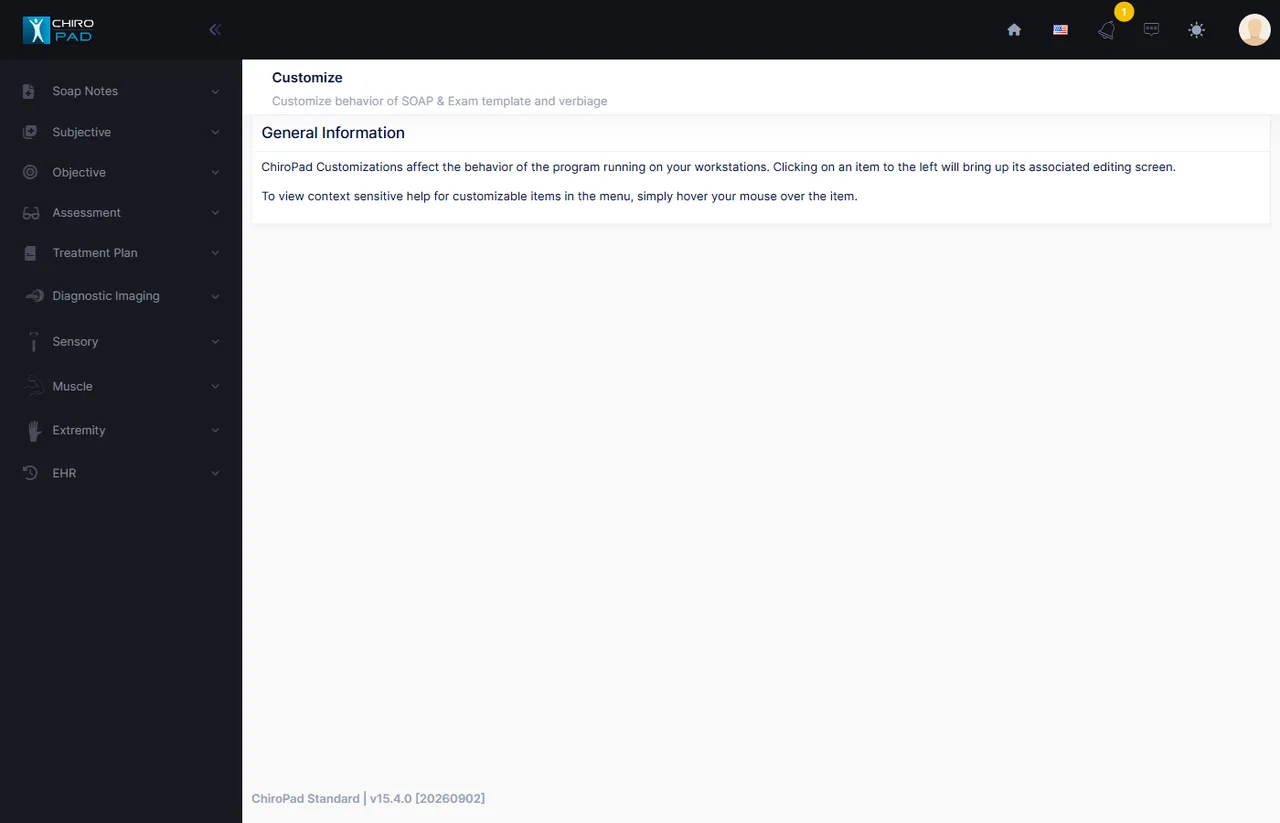
The screens live in their own menu: open the context switcher at the top of the main menu and choose Customization. The menu follows the clinical screens it customizes:
| Section | Customizes |
|---|---|
| SOAP Notes | Initials, note categories, and global find-and-replace |
| Subjective | Activities of daily living, complaints and their verbiage, complaint history lists, complaint lead-in templates |
| Objective | Ortho/neuro test folders, range-of-motion tables, and the spinal exam verbiage |
| Assessment | Pre-existing conditions, condition status, current progress, and "resulting from" lead-ins |
| Treatment Plan | Modalities, regions, visit status, phases, goal templates and items, and the treatment plan macros |
| Diagnostic Imaging | DIR views, findings and regions |
| Sensory | Sensory tests and their verbiage |
| Muscle | Muscle regions, the muscle list, and verbiage |
| Extremity | Extremity regions, bones and joints, and verbiage |
| EHR | Patient education resources |
Customization is practice-wide
Everything here applies to every provider and every patient in the practice, from the next note generated. It is not a per-user setting. Decide changes as a practice, make them once, and tell the other providers what changed.
No two doctors document alike
ChiroPad ships with hundreds of templates and lists that produce acceptable notes as delivered. Most practices change nothing for the first month, then adjust the phrases they see most often in their own notes. That is the right order: learn what the defaults produce before rewriting them.
Ideas that recur on every screen
Listings and Inactive
Most screens have a listing on the left (the items that exist) and the detail of the selected item on the right. Items are rarely deleted; they are made Inactive, which removes them from the clinical screens while keeping every historical note that used them intact. Tick Show Inactive to see retired items and reactivate one instead of creating a duplicate.
Mnemonic
Many items carry a short mnemonic — an internal code, typically up to 10 characters, that identifies the item to the note generator. It must be unique, it is required, and once saved it cannot be changed. It never prints.
Clone
Where a new item will be similar to an existing one, Clone copies it — including all its verbiage — under a new name and mnemonic. Review every copied template afterwards; the wording that fitted the original rarely fits the copy word for word.
Verbiage templates, iterations and weight
A template is the sentence or phrase ChiroPad writes for an item. Most items hold several iterations — alternative wordings of the same template — and the generator picks one at random each time it writes a note. That is what keeps notes from reading as if a machine wrote them, and it is why carriers cannot flag them as cloned.
Each iteration carries a weight. The weight sets how often that wording is chosen relative to the others: an iteration weighted 9 appears nine times as often as one weighted 1. The range is 1 to 9 on most screens. Give every iteration the same weight for the most even variation; lower the weight on a wording you like less rather than deleting it.
More iterations, more natural notes
Five iterations of a sentence produce far more natural-looking notes than one. When you rewrite a template, keep the original as one of the iterations and add your own alongside it.
Use the arrows beside the iteration number to step through the iterations of the selected item. Add starts a new iteration, Save stores it, Undo discards an unsaved edit, and Delete removes the iteration currently shown.
Merge fields
Templates contain merge fields in braces — {patient}, {severity}, {date} — which the generator replaces with the patient's data when the note is written. Each screen offers the merge fields that apply to it in a Merge Fields list; pick one and click Insert to place it at the cursor. Fields can also be typed by hand, and must be typed exactly, braces included.
Grammar fields — {he}, {his}, {him}, {isare}, {s/s}, {a/an} and the like — are resolved from the patient's sex and from whether the surrounding item is singular or plural, so one template reads correctly for everyone.
Where a screen has a Verbiage Template Test Area, it shows the selected template with sample data merged in, so a change can be checked before it reaches a real note.