
Appearance
Assessment customization
Four screens behind the Assessment screen. Two of them are lists the provider chooses from; two are lead-in phrases the generator completes from the provider's choices. All four also shape the Prognosis tab, and so the narrative report.
Pre-existing Conditions
Not the list of conditions — that is added to on the Assessment screen itself — but the lead-in phrase that introduces them in the note: "Contributing to the patient's condition is a history of…". Six iterations ship with the system; add, edit, weight and delete them as on every verbiage screen. Weights run 1 to 9.
Condition Status
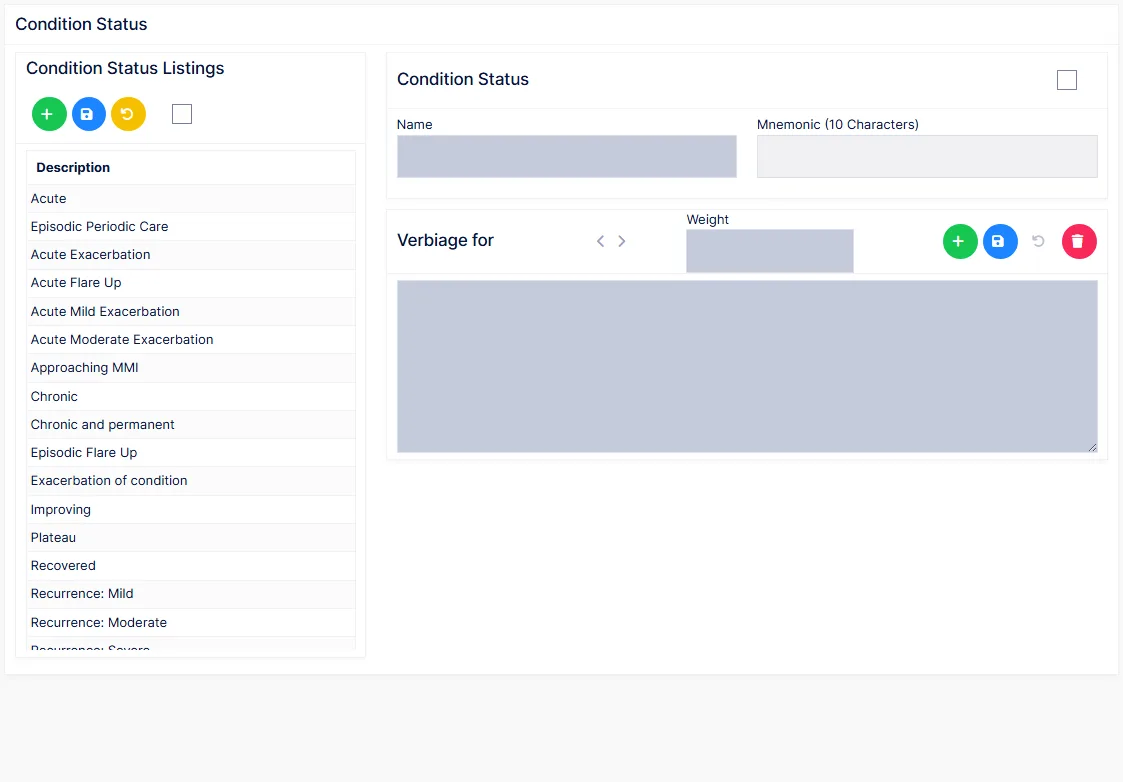
The list of condition levels — the patient's overall state — chosen on the Assessment screen, and the sentence written for each.
Medicare requires a condition status in every note
The status is not optional documentation. Every SOAP note must state the condition's status; the Assessment screen offers this list so that it is never missed.
The left column is the listing; Show Inactive reveals retired entries. Before adding a status, check the inactive ones — it may already exist. To create one, Add and enter a name and a mnemonic, or Clone an existing status to copy its verbiage under a new name and mnemonic. Drag entries up and down to set the order they appear on the Assessment screen.
Each status has a Weight and its own verbiage iterations, edited on the right. Undo reverts an unsaved edit.
Current Progress
The list of levels of improvement — chosen at a re-examination — and the sentence written for each. Medicare and most state boards require progress to be stated whenever a re-exam is performed.
Works exactly as Condition Status: a listing on the left with Add and Clone, a name and verbiage on the right. Each iteration is a complete sentence.
Verify the verbiage on anything you create
A new progress entry has no verbiage; a cloned one has the original's. Either way, select it after saving and read every iteration before it is used on a patient — an empty template writes nothing, and a copied one may say the wrong thing.
Resulting from lead-in's
The lead-in phrase for the "Resulting From" box on the Assessment screen. The provider ticks what the current progress results from; this phrase starts the sentence and the ticked items complete it — so each iteration is deliberately not a complete sentence.
The list does not itself appear on the Assessment screen; only the phrase does. Add, edit, weight and delete iterations as on the other screens.