
Appearance
Preferences
Preferences shape how the working screens behave. There are five pages under Administration → Preferences, each with its own Save button — save the page you are on before moving to the next.
Two of the pages are the practice's; the others are yours:
| Page | Applies to |
|---|---|
| General | The whole practice |
| Front Desk | Your own sign-in only |
| Insurance | The whole practice |
| Transaction | The whole practice |
| SOAP Note | Your own sign-in only |
Preferences need the Preference permissions; the Doctor role has them, the OfficeManager role does not.
General
One setting: the Visitometer — how ChiroPad counts a patient's visits, which drives the visit counter on the Front Desk and the diagnosis counter.

| Option | Counts a visit when |
|---|---|
| Use transactions | A charge is entered for the date. Recommended for practices that bill through ChiroPad — the count then matches what was billed |
| Use SOAP notes | A SOAP note exists for the date. For clinical-only practices, or where charges are entered elsewhere |
This applies to the whole practice, not just your own sign-in. Changing it changes every patient's count from the next time their record is opened.
Front Desk
Auto refresh: how often, in seconds, the Front Desk's Scheduled and Signed-In lists reload on their own so a workstation shows patients arriving without anyone pressing Refresh. Set it to 0 to turn auto refresh off. It takes effect the next time the Front Desk is opened, and it is your own setting — every user sets their own.

Insurance
Electronic Clearinghouse Settings — the login ChiroPad uses when the Insurance Manager uploads electronic claims.
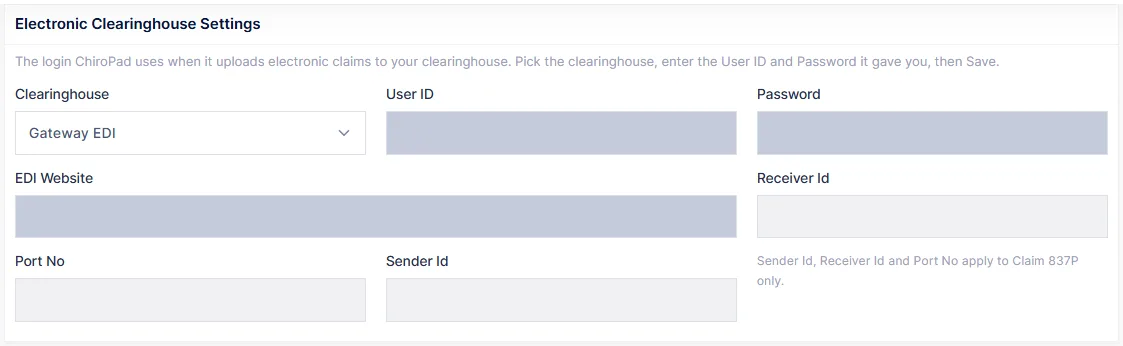
| Field | Notes |
|---|---|
| Clearinghouse | Gateway EDI or Claim 837P |
| User ID, Password | Issued by the clearinghouse. Both are required to save |
| EDI Website | The upload address |
| Sender Id, Receiver Id, Port No | Claim 837P only — they are ignored for Gateway EDI |
The password is stored encrypted. Change it here whenever the clearinghouse changes it, or claim uploads will start failing silently.
Transaction
Card payments, in two sections. Both are practice-wide and both have a Test Connection button — use it after saving.
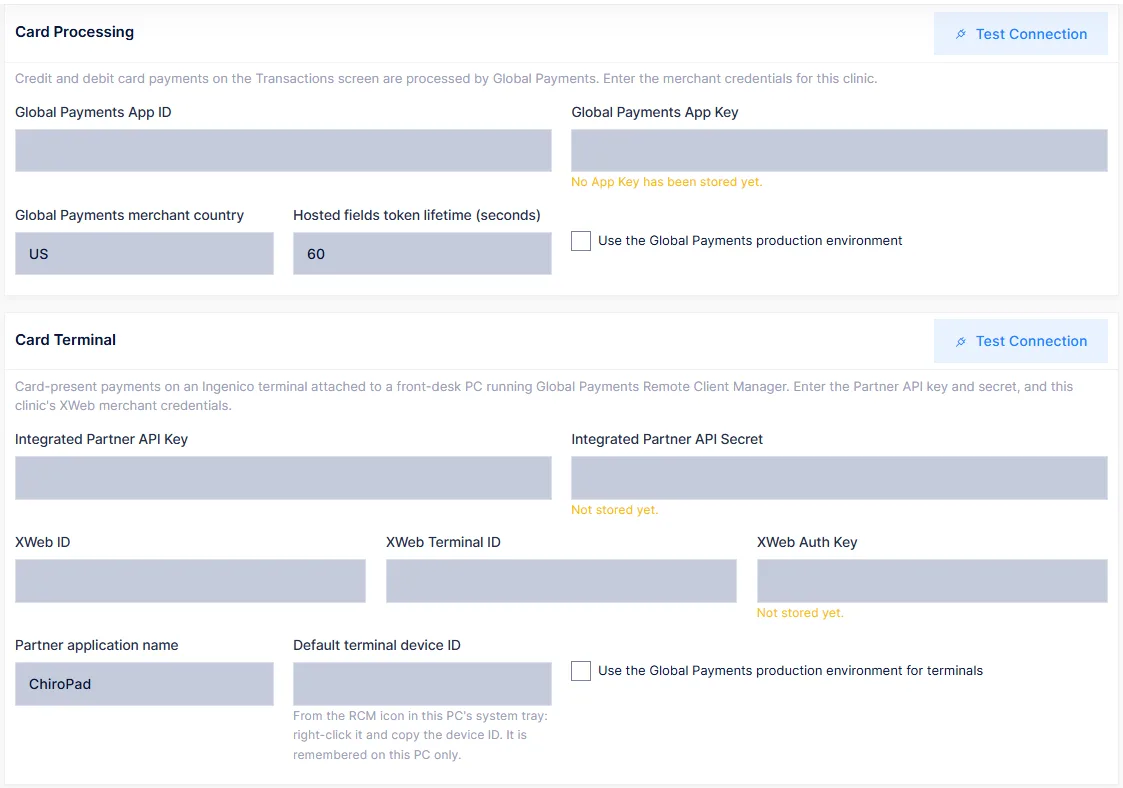
Card Processing — card payments keyed on the Transactions screen, processed by Global Payments:
| Field | Notes |
|---|---|
| Global Payments App ID, App Key | The merchant credentials for this clinic. The key is stored encrypted and never shown again |
| Merchant country | The country the merchant account is registered in |
| Hosted fields token lifetime | How long, in seconds, the card entry form stays valid |
| Use the production environment | Off while testing. On means real cards are charged |
Card Terminal — card-present payments on an Ingenico terminal attached to a front-desk PC running Global Payments Remote Client Manager:
| Field | Notes |
|---|---|
| Integrated Partner API Key, API Secret | Issued to the practice by Global Payments for the partner API |
| XWeb ID, XWeb Terminal ID, XWeb Auth Key | This clinic's XWeb merchant credentials |
| Partner application name | How the practice identifies itself to Global Payments |
| Default terminal device ID | Copied from the RCM icon in the PC's system tray (right-click it). Remembered on that PC only |
| Use the production environment for terminals | As above |
Production means live money
Both production switches are off until you turn them on. Turn one on only when the credentials are the live ones and a test transaction has been agreed with the processor.
SOAP Note
How generated notes are worded, for your own sign-in. Each provider sets their own.
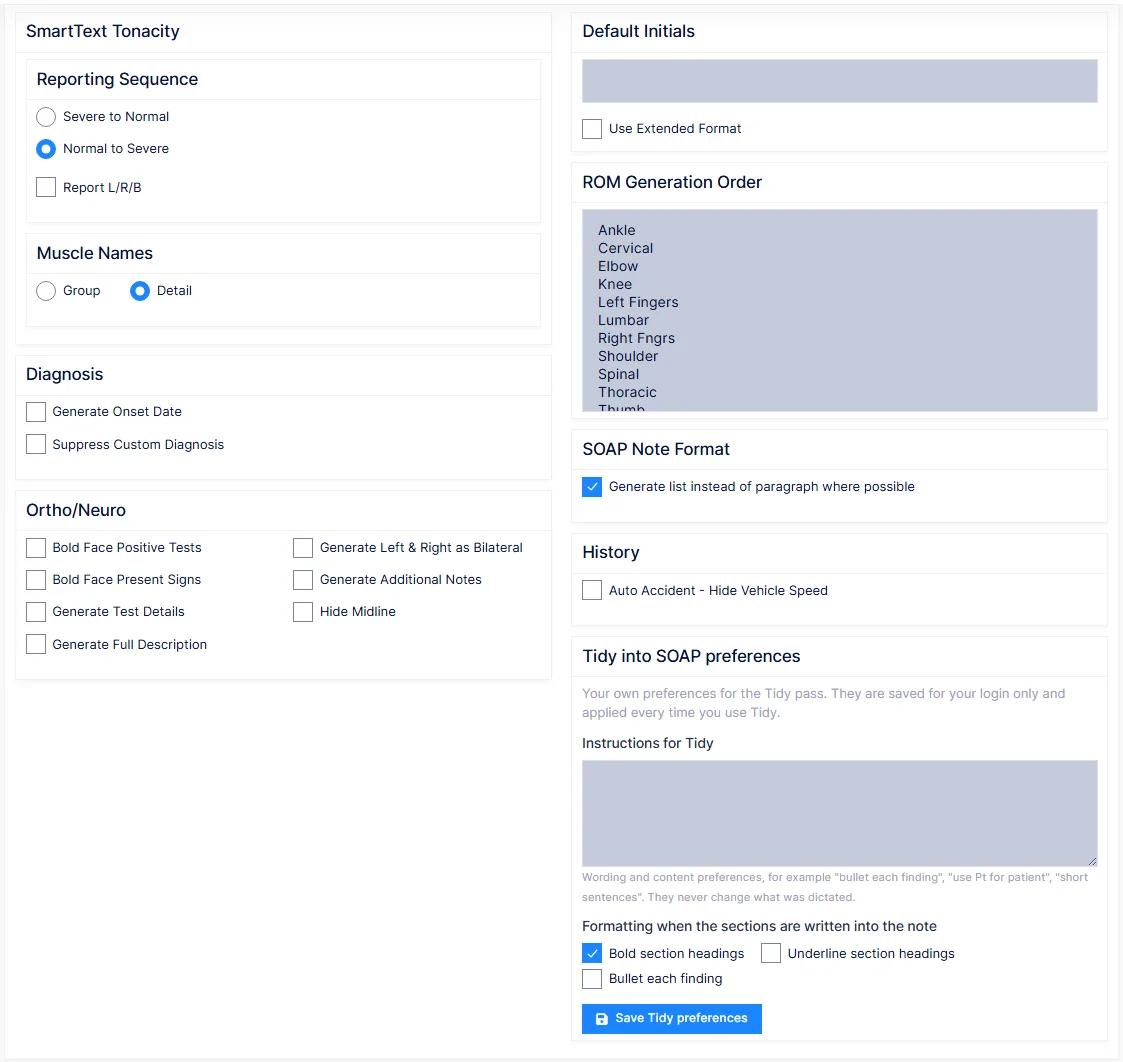
| Section | Options |
|---|---|
| SmartText Tonacity | Reporting sequence — Severe to Normal or Normal to Severe; Report L/R/B — include left/right/bilateral |
| Muscle Names | Group or Detail — name the muscle group or each muscle |
| Diagnosis | Generate Onset Date; Suppress Custom Diagnosis |
| Ortho/Neuro | Bold Face Positive Tests, Bold Face Present Signs, Generate Test Details, Generate Full Description, Generate Left & Right as Bilateral, Generate Additional Notes, Hide Midline |
| Default Initials | Which entry from the Initials list signs your notes, and Use Extended Format — the full name and credentials rather than initials |
| ROM Generation Order | Drag the range-of-motion tables into the order they should appear in the note |
| SOAP Note Format | Generate list instead of paragraph where possible |
| History | Auto Accident – Hide Vehicle Speed |
Set Default Initials before generating anything
With no default chosen, Generate has nothing to sign the note with. Pick your entry here once; the Generate screen lets you override it per note.
Where the practice uses dictation, a Tidy into SOAP preferences section appears below with its own Save — those settings belong to the dictation feature and are saved separately.