
Appearance
Objective customization
Three screens behind the Objective screen and the Ortho/Neuro and Range of Motion examinations.
Ortho/Neuro
The orthopedic and neurological tests and signs, and the folders that group them on the examination screen.
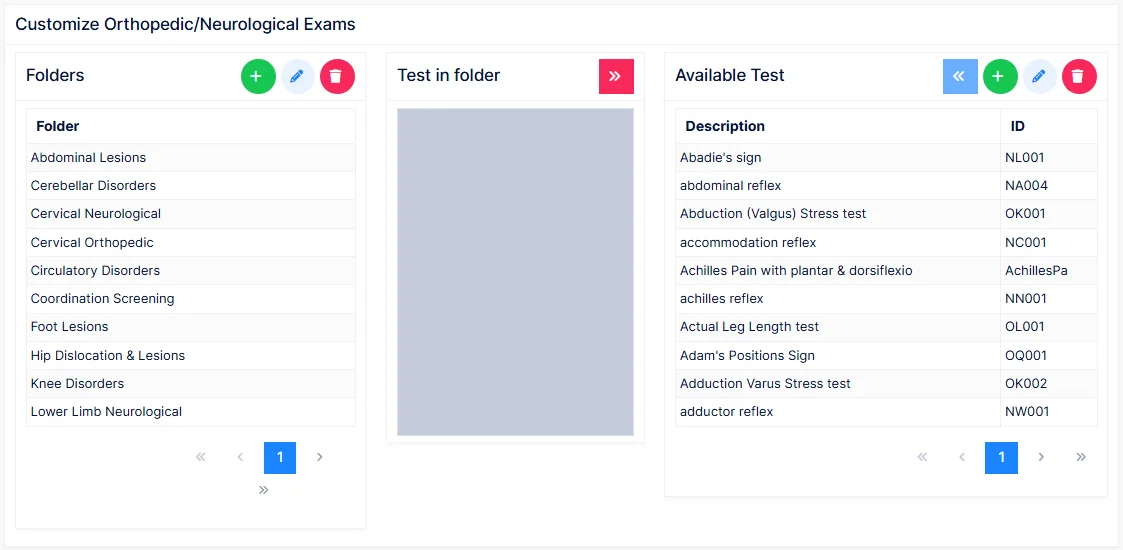
ChiroPad ships with hundreds of tests and a set of folders already built. The screen has three areas:
| Area | Holds |
|---|---|
| Folders | The folders shown on the patient's Ortho/Neuro screen |
| Test in folder | The tests in the selected folder, in the order they appear |
| Available Test | Every test in the system, alphabetically |
Select a folder, select a test in Available Test, and use the arrow to add it to the folder; select a test in the folder and use the other arrow to remove it. Drag tests within a folder to reorder them.
Before creating a test, search Available Test — it is almost certainly there. If not, add one with a Category, ID, Name and Full Description. The full description is the explanatory text shown at the bottom of the examination screen when the test is selected, and it is what Generate Full Description in the SOAP Note preferences writes into the note.
Build folders around how you examine
A folder per region — Cervical, Lumbar, Shoulder — or a folder per exam type — Initial, PI re-exam — both work. What matters is that the tests a provider uses routinely are one click away, in the order they are performed.
Range Of Motion
The ROM tables offered on the Range of Motion screen, and the rows in each.
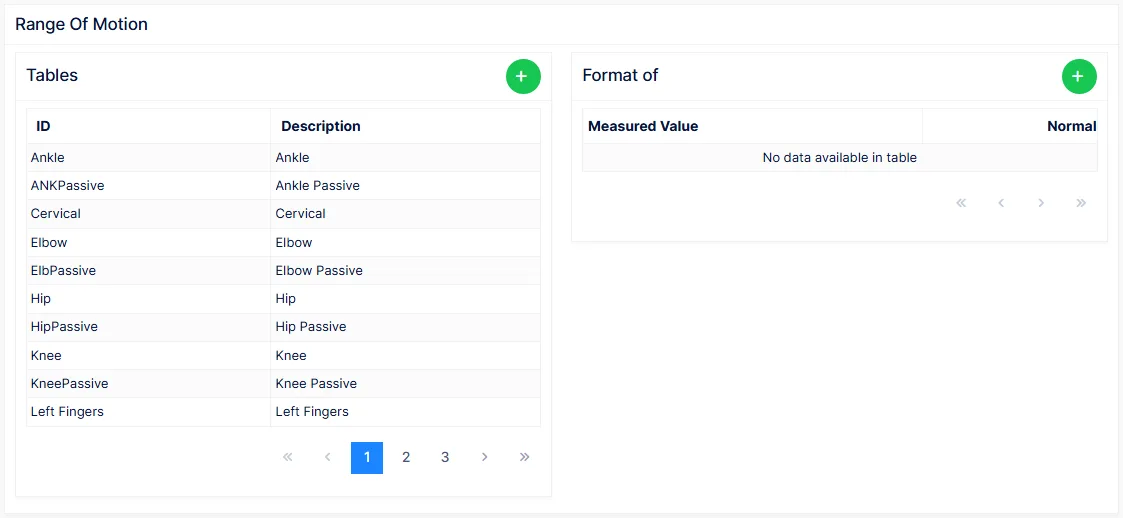
The left column lists the tables (ID, Description) — cervical, thoracolumbar, each extremity. The right shows the selected table's rows: each row is a Title with its Normal value. Add, edit or clone tables and rows here; the order of the tables can be rearranged, and it is the order they appear on the ROM screen and print in the note.
The normals are the AMA Guides
The normal values as shipped follow the AMA Guides to the Evaluation of Permanent Impairment. A practice may change them, but should have a citable reference for any value it substitutes — the note says what "normal" is, and an examiner may ask.
The order in which ROM tables are generated into the note is set separately, in Preferences → SOAP Note.
Spinal Exam
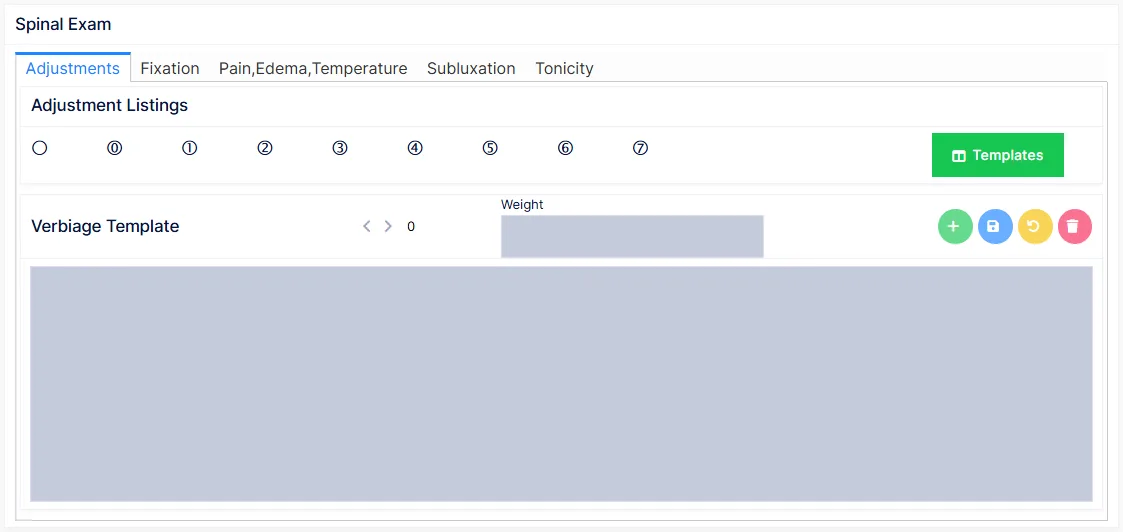
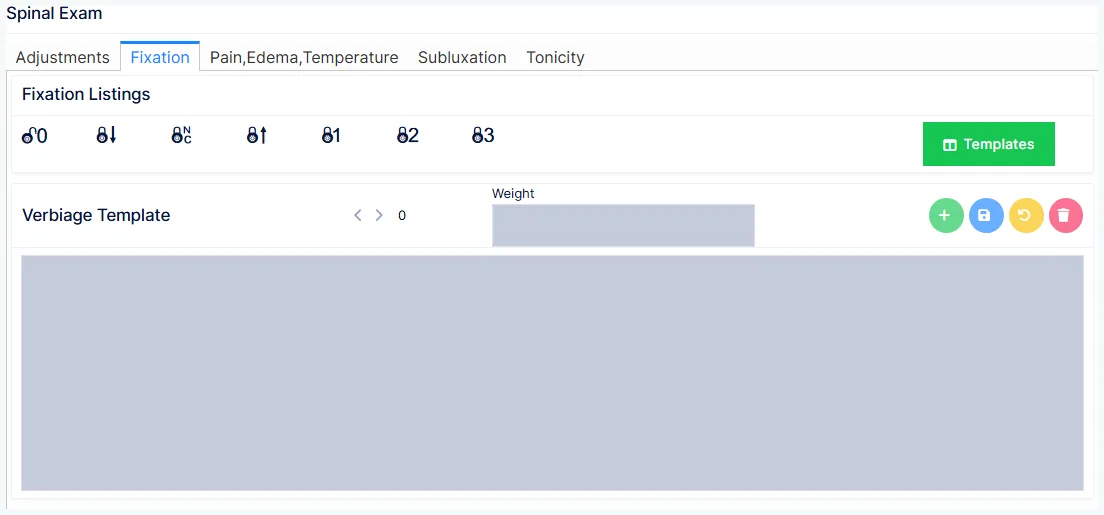
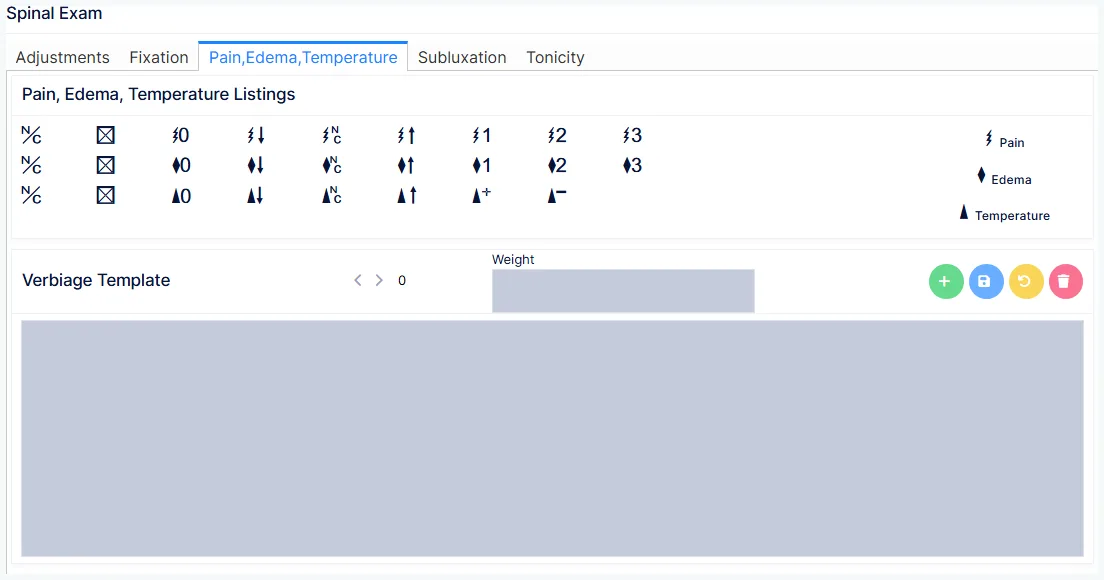
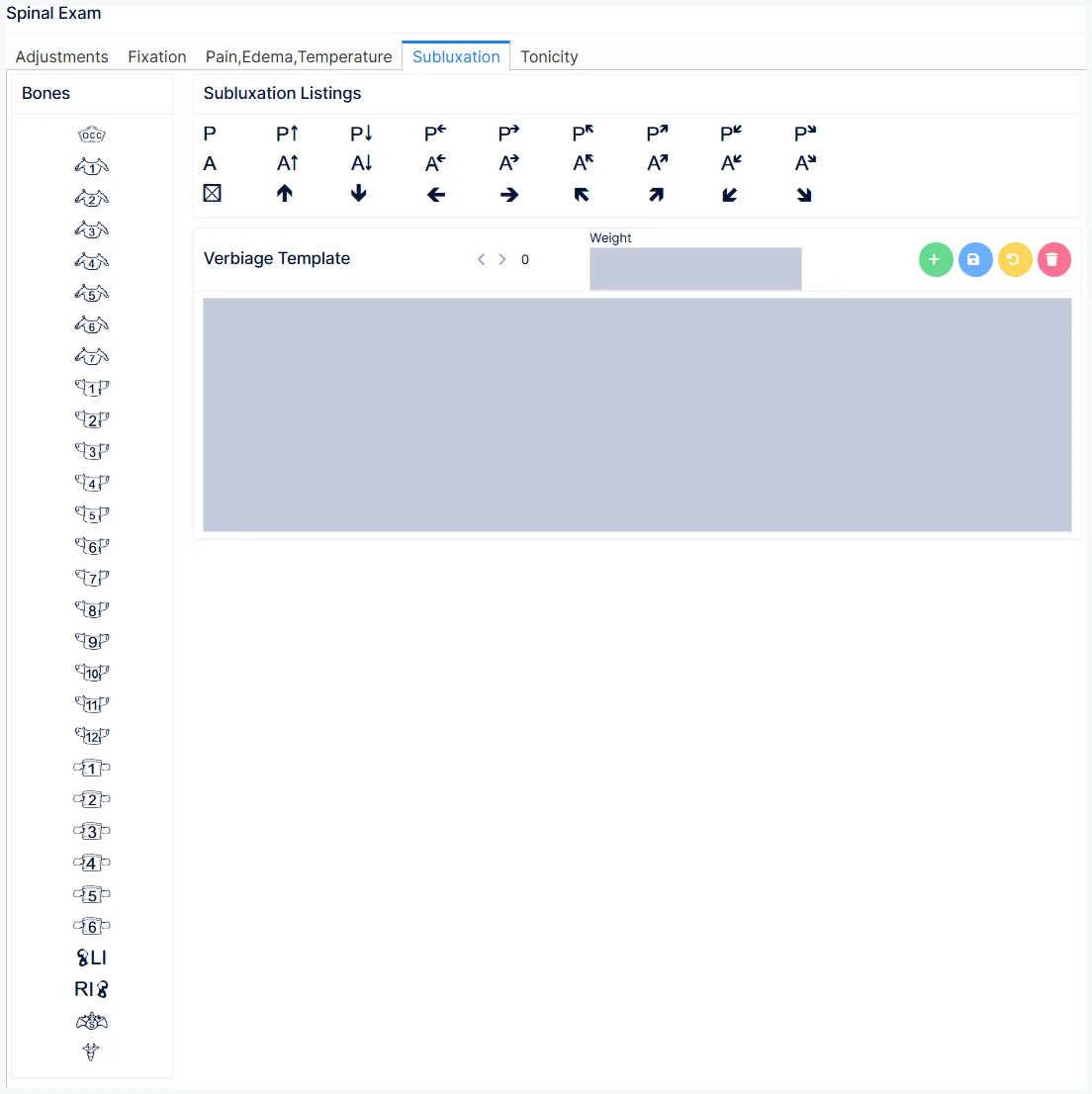
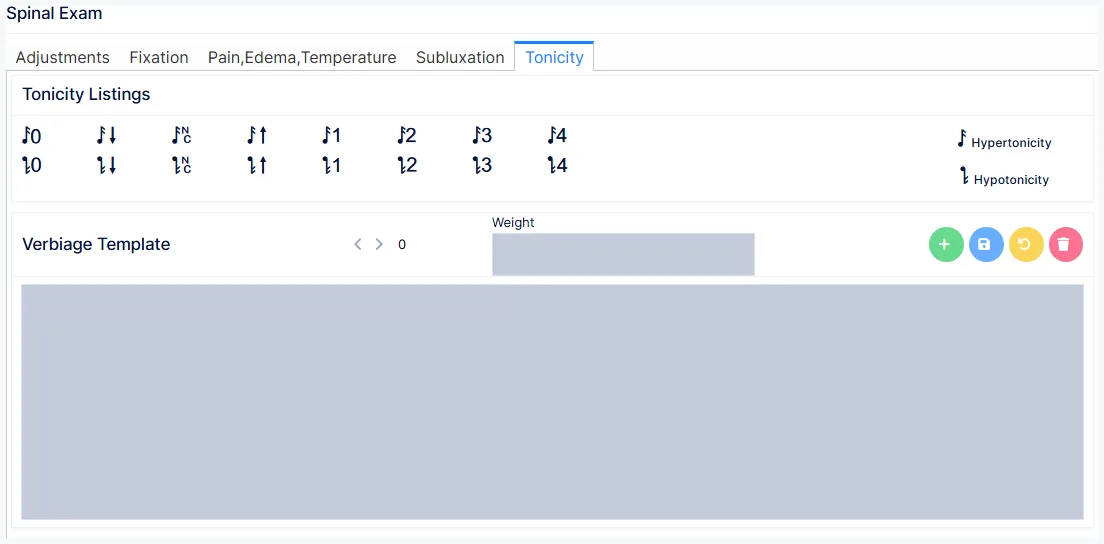
The verbiage behind the symbol palette on the Objective screen's spine diagram, in five tabs:
| Tab | Symbols |
|---|---|
| Adjustments | The adjustment listings — what was adjusted, and how |
| Fixation | The padlock symbols: none, decreased, no change, increased, and mild / moderate / severe fixation |
| Pain, Edema, Temperature | The lightning bolt, diamond and triangle |
| Subluxation | The listing symbols — posterior, anterior, superior, inferior, left, right and their combinations |
| Tonicity | The hypertonicity and hypotonicity notes |
On each tab, select a symbol in the listing to see its templates. Each symbol carries several iterations — typically five to fourteen — with a weight from 1 to 9. Add an iteration, edit it, save, undo or delete as on every verbiage screen.
These are phrases, not sentences
A spinal template is a phrase that the generator drops into a larger sentence describing the segment. Keep any edit in the same grammatical shape as the iterations already there, or the assembled sentence will not read.
Listings are deliberately generic
The subluxation symbols do not commit to spinous, transverse or body listings; each practice's technique gives them meaning. The Medicare PART exam needs asymmetry documented, and either subluxation listings or fixations satisfy that — the template wording is where the practice says which convention it uses.