
Appearance
Settings
Administration → Settings holds the practice-wide settings — the ones that are the same for every user and every workstation. The screen is a set of tabs; change what you need on any of them and click Save all once.
These are not the clinical preferences
How the Front Desk refreshes, which clearinghouse you upload to, how SOAP notes are worded — those are under Preferences. Settings is the account itself: security, email, appearance and legal details.
General
The practice's time zone. Appointment times, sign-in times and every timestamp in the system are shown in it, so set it before anyone books an appointment. The tab appears only where the system is configured to support more than one time zone; otherwise the server's applies.
Appearance
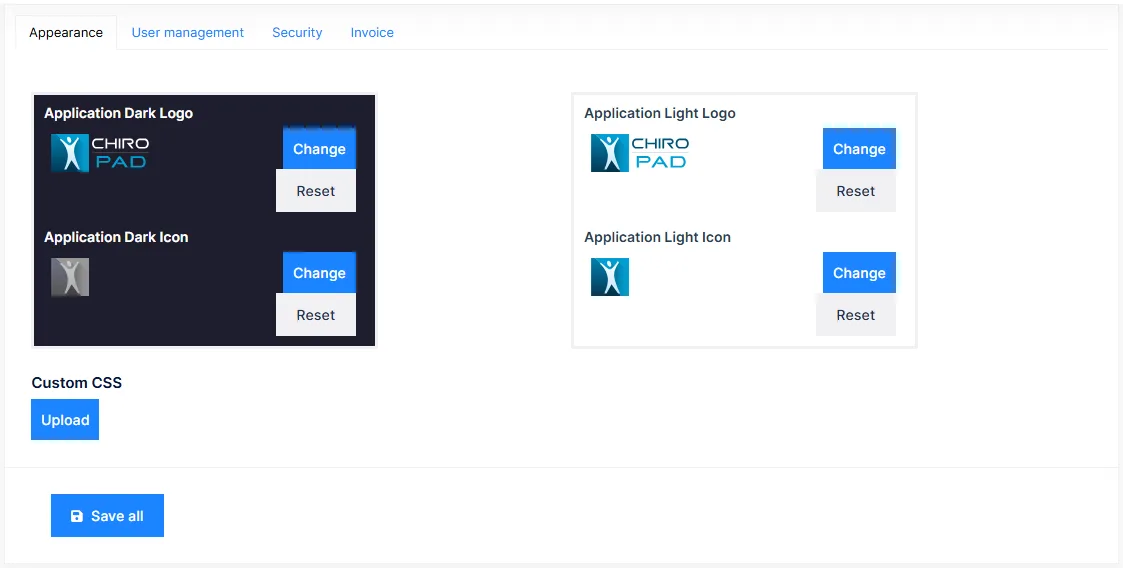
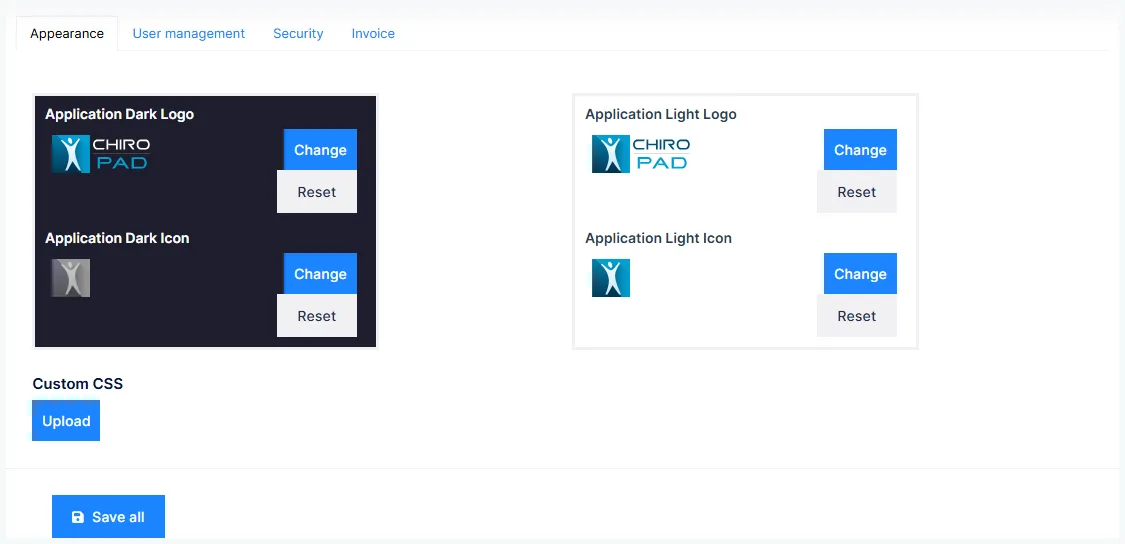
The logo and icon shown in the application header, in light and dark variants, and an optional custom stylesheet. Upload a logo to replace the ChiroPad wordmark on every screen.
User management
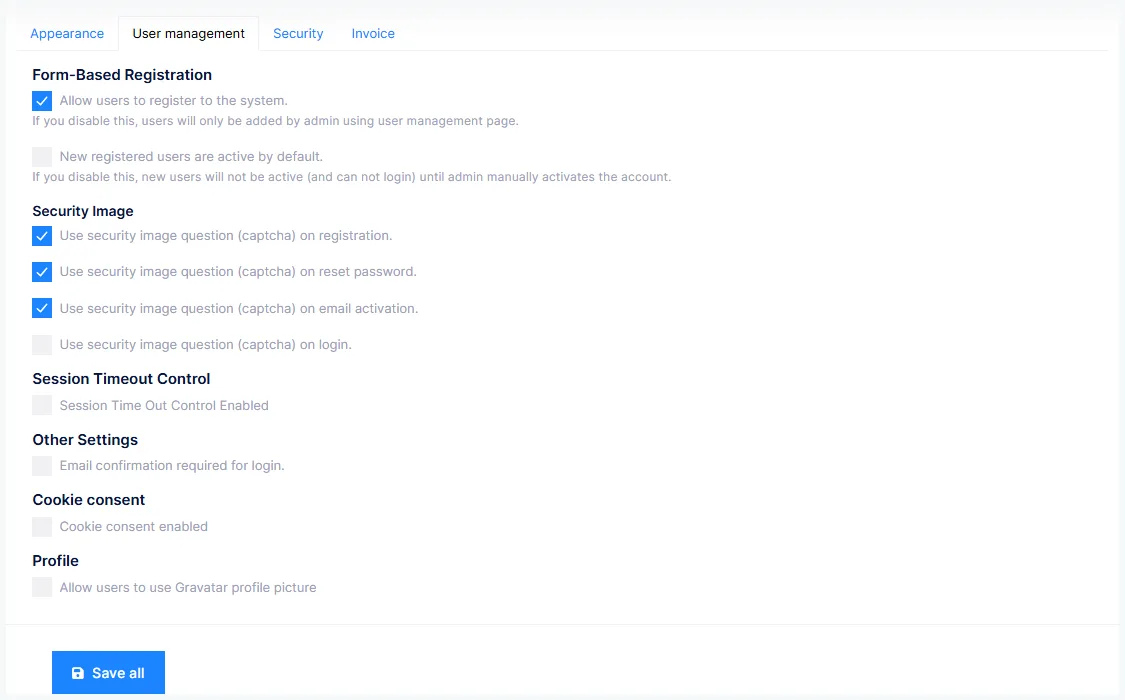
How sign-in behaves:
| Setting | Effect |
|---|---|
| Allow users to register themselves | Leave off. Staff accounts are created by an administrator |
| Security image | Show a captcha on sign-in, registration and password reset |
| Session timeout | Sign the user out after a period of inactivity, optionally showing a lock screen first, with a warning some seconds before |
| Passwordless login | Sign in with a code sent by email or SMS instead of a password |
| QR login | Sign in on one device by scanning a code shown on another |
Set the session timeout
A workstation left signed in at an unattended front desk is a HIPAA finding waiting to happen. Turn Session timeout on and choose a period that suits the practice — long enough not to interrupt a consultation, short enough that a walk-away is covered.
Security
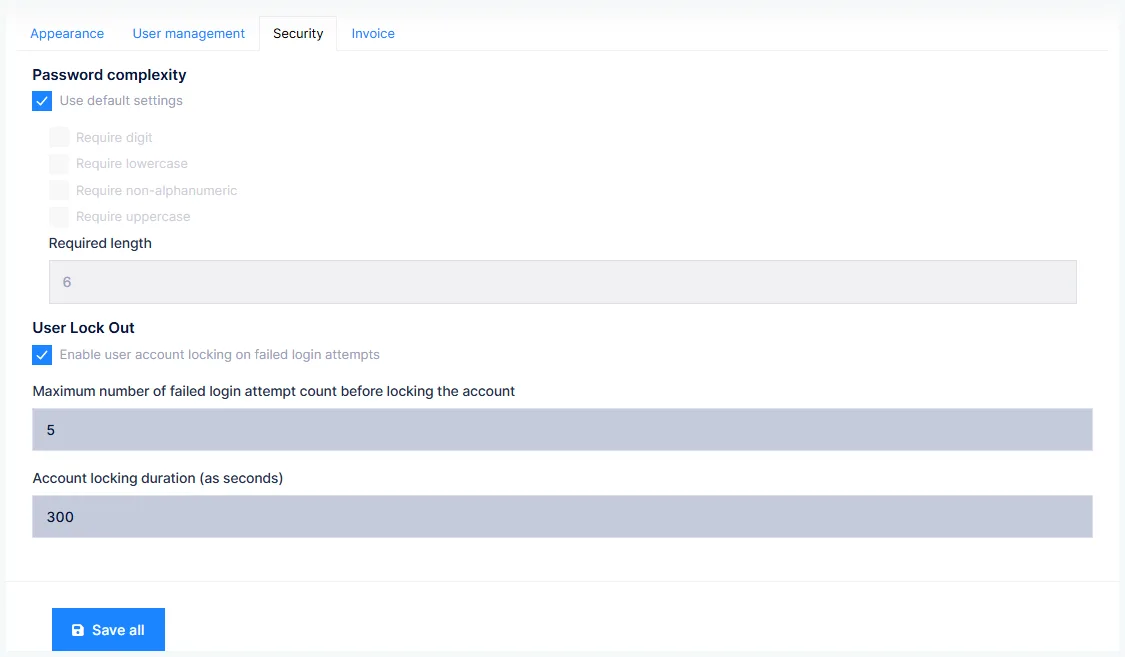
The password complexity rules — minimum length, required character classes — and user lockout: how many failed attempts lock an account and for how long. Two-factor authentication can be enabled here for the whole practice, with the delivery methods allowed.
Some states set a minimum password length
Several states require a minimum of seven or more characters for a compliant practice system. Set the minimum here to at least what your state requires; the default may be shorter.
Email (SMTP)
The mail server ChiroPad sends through: activation emails, password resets, notifications and patient emails from the Front Desk. Enter the host, port, credentials and the sender address, then use Send test email to prove it works before relying on it.
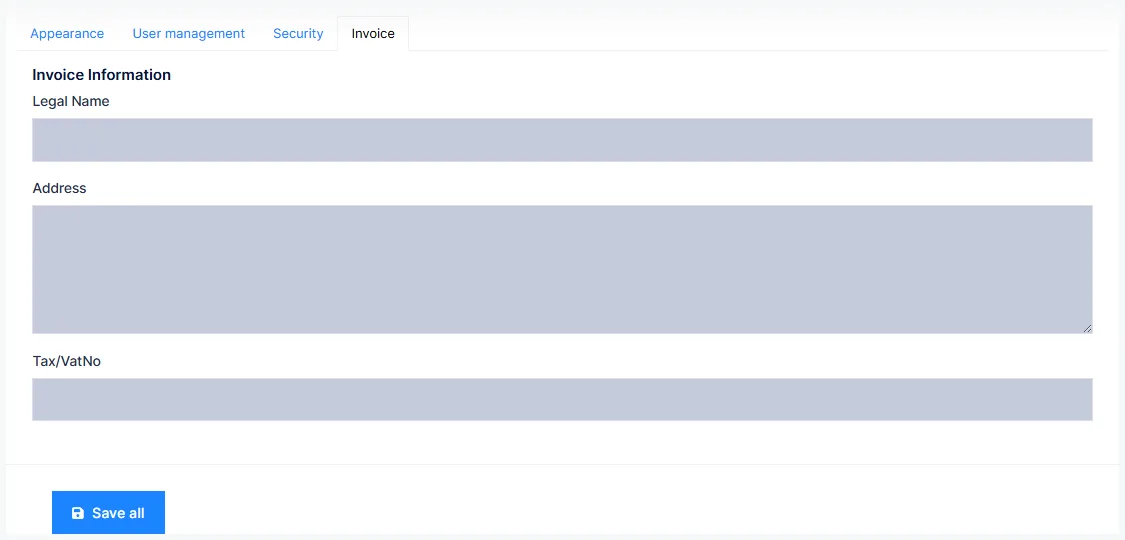
Invoice
The legal name, address and tax number that print on subscription invoices.
Other settings
Three switches: Email confirmation required for login — new users must confirm their address before signing in; Cookie consent — show the cookie notice; and Profile — allow Gravatar profile pictures.
External login
Sign-in through an external identity provider — Google, Microsoft, Facebook, Twitter, OpenID Connect or WS-Federation. Each needs the client ID and secret issued by that provider. Most practices leave these off.
Languages
Administration → Languages lists the interface languages available to users. Each user chooses their own from the header. An administrator can change texts for a language — override any label in the interface with the practice's own wording — from the language's actions menu.
Visual Settings
Visual Settings is under the user menu in the header. It sets the theme — layout, menu position, colours — for your own sign-in; an administrator can set the default for everyone.