
Appearance
Their details
Five screens where the patient maintains their own record. All of them write straight to the chart when the patient presses Save. None of them queue anything for review.
My Info
Contact details, and nothing else. Home, work and cell phone, email, fax, and the address.
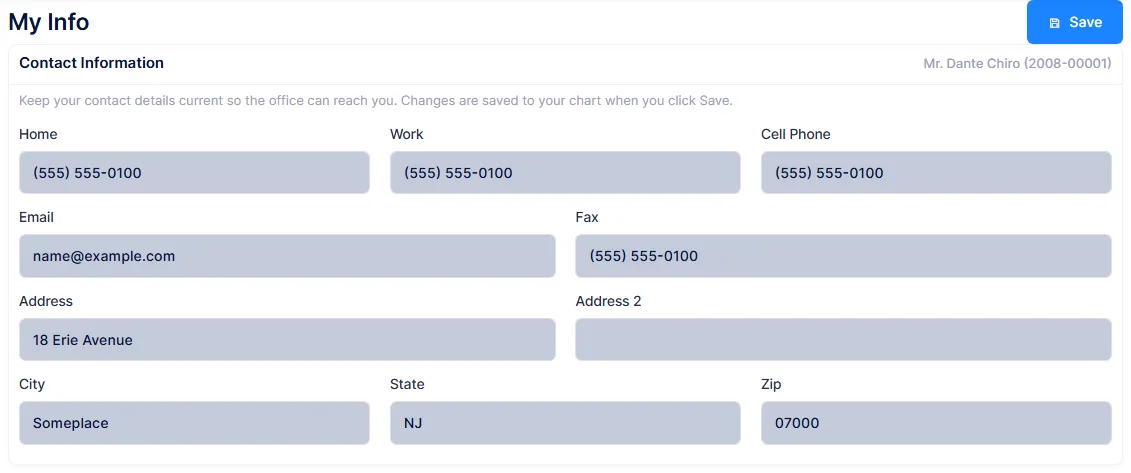
The name and chart number in the top right are display only. Everything else is editable.
These are the same columns as Patient Information → Personal, so a change here is a change there.
A patient can blank fields the front desk cannot save without
Patient Information treats Address, City, Zip and Cell Phone as required. The portal treats nothing as required. A patient who clears their address saves happily, and the next member of staff to open Patient Information cannot save that chart until they fill the fields back in.
Changing the email here changes the sign-in address
The portal account's email address is kept in step with the chart. When a patient edits Email on this screen, the address they sign in with changes too. Their username is untouched, and ChiroPad accepts either, so they can still get in. Worth knowing before you tell a patient to "just update your email".
The phone boxes have no input mask, unlike the staff screen, so expect inconsistent formatting.
Emergency Contact
Name, relationship, three phone numbers with an extension, and an email address. The relationship list is the practice's own Family Relationship catalog.
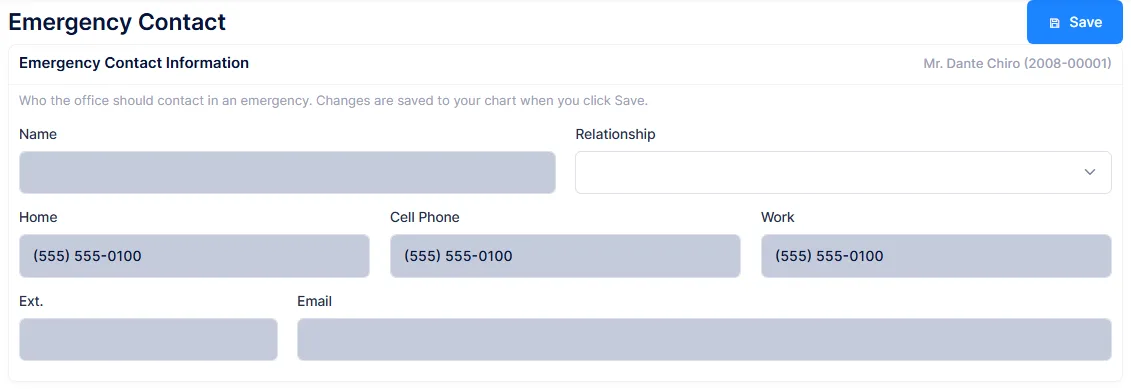
This is the same record as the Emergency Contact Information card on Patient Information → Personal.
The email address has nowhere to appear
There is no emergency contact email field anywhere on the staff side. Whatever a patient types there is stored, but no one in the practice can see it in ChiroPad. Treat it as write-only until that field is added.
The extension box accepts ten characters here and five on the staff screen, so staff can be shown a value they could not have typed themselves.
Employer
Three controls: an Employed tick, a text box labelled Employer, and Work Activities.
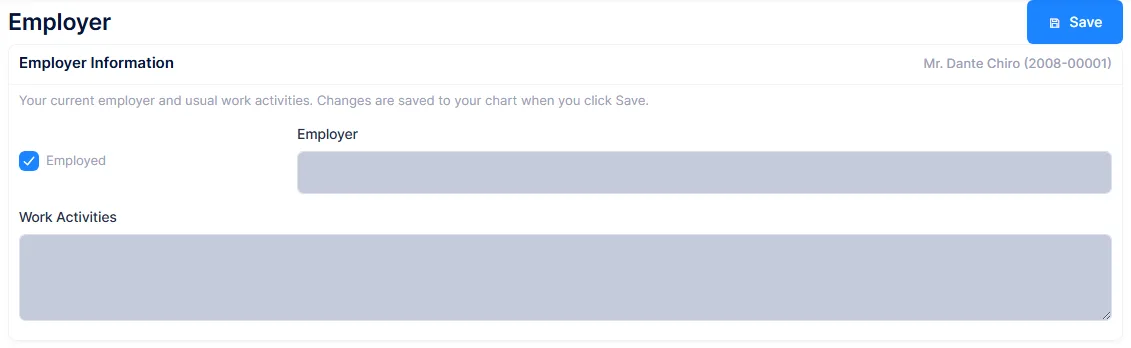
The Employer box is not the employer
The box labelled "Employer" writes to the field the staff Occupation tab labels Job/Title Description. The real employer on the staff side is a dropdown pointing at the employer catalog, and the portal cannot touch it.
So a patient who changes jobs and types their new employer's name puts it in the job-title box, while Occupation still shows the old employer along with its address and phone. Read anything a patient types here as a prompt to update the employer yourself, not as the update.
There is a second, quieter problem on this screen. The Employed tick is stored as a three-state value on the chart, but the portal only understands ticked or not, so an unknown value comes back as unticked and is saved as "not employed". Because all three of these screens post the whole record, that happens when the patient saves My Info or Emergency Contact too. On the staff Occupation tab the employer dropdown is disabled unless Employed is ticked, so the practical symptom is a greyed-out employer dropdown after a patient saves anything.
Family
Read-only list of the charts this login can act on, and the way the patient switches between them.

The patient's own chart is tagged "(Self)", the one currently in view carries a "Currently viewing" badge, and the rest have a View button. Patients cannot add or remove links here; that is done by staff on the Patient Portal card on each chart.
The chosen chart is stored per user and applies everywhere in the portal until it is changed. It persists across sign-outs and devices.
What a linked person can do
Everything the patient could. On the child's chart a parent can change demographics, the emergency contact and employer, edit insurance, see the balance and download the statement, read visit notes and the care plan, and change the child's sign-in email address.
Revoking access from the chart's Patient Portal card takes effect on the linked person's next request, and clears their chart selection.
Relationships here come from a fixed list of Parent, Guardian, Spouse, Child, Caregiver and Other. Note that this is a different list from the one on the Emergency Contact screen, which uses the practice's own catalog.
My Account
Account information, the reminder preference, and shortcuts to the standard security dialogs.
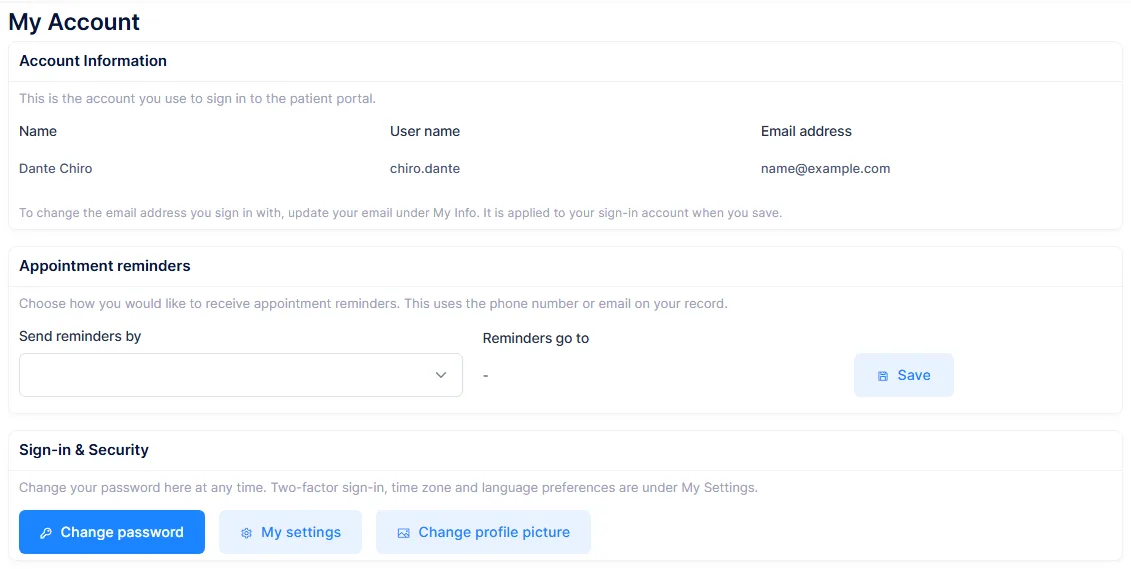
Name, username and email address are shown read-only, with a pointer to My Info for changing the sign-in address. Change password, My settings and Change profile picture open the same dialogs as the user menu elsewhere in ChiroPad, so password rules and two-factor behave normally.
The only editable thing on the page is Send reminders by, which writes the chart's Communication Preference, the same field as on Patient Information → Personal. "Reminders go to" below it is calculated, and falls back from home phone to cell and back again, so a patient who wants to change the number has to do it on My Info.
The reminder dropdown can wipe a setting staff chose
The staff Communication Preference list has nine options. The portal offers six: it leaves out Fax, Emergency Contact and In Person Only.
If a chart is set to one of those three, the portal dropdown matches nothing and falls back to blank. The patient presses Save on something else on that page and the preference is cleared altogether. Check the Communication Preference on charts where it matters after a patient has used this page.
One more thing to know if a guardian uses this screen. The account details at the top are always the person signed in, but the reminder preference belongs to the chart they have selected. A parent can change a child's reminder channel from a page headed with the parent's own name.