
Appearance
Money and insurance
Three screens, and the two most consequential things in the whole portal. Read the payment reconciliation section before you switch Pay Online on.
Pay Online
The patient sees what they owe and can pay it by card.
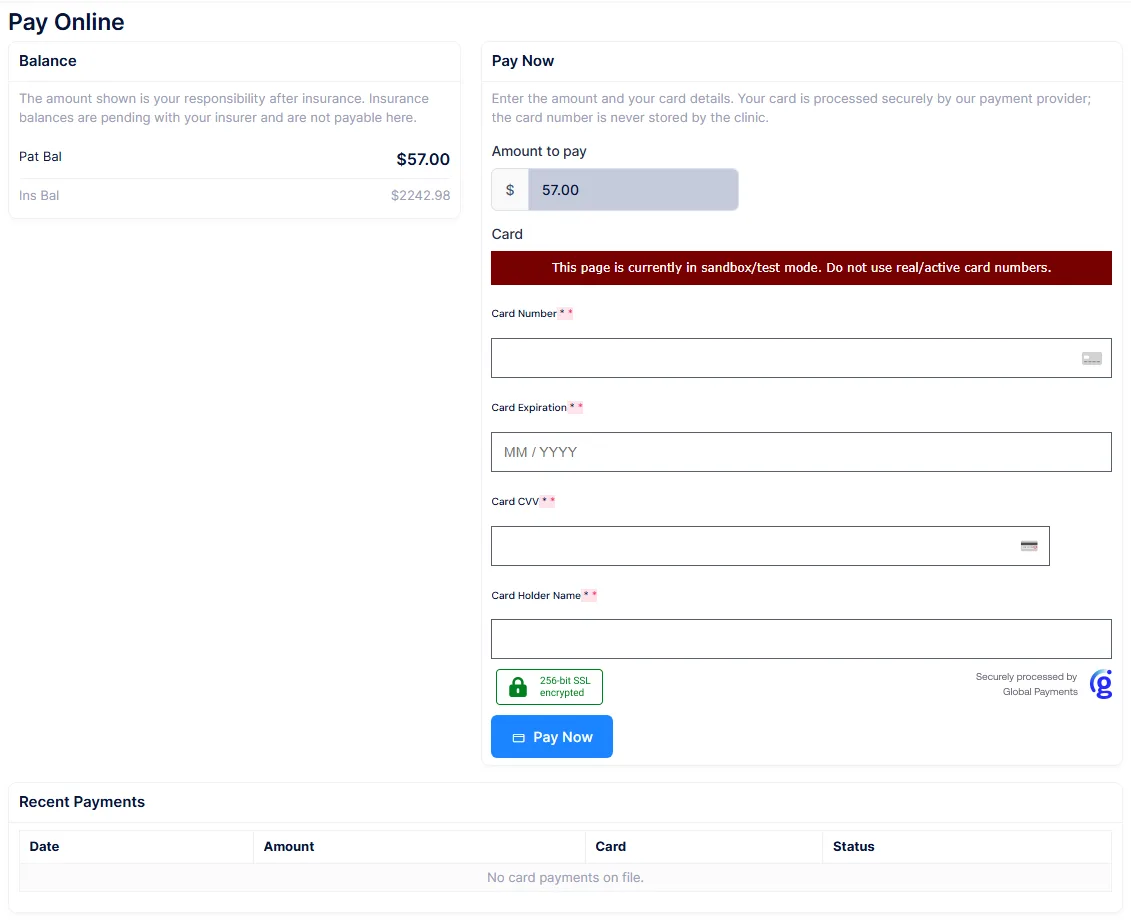
Balance shows the patient balance as the payable figure and the insurance balance greyed out beside it, with a line explaining that insurance balances are pending with the insurer and are not payable here. Pay Now takes an amount, pre-filled with the full patient balance, and the card details. Recent Payments lists the last ten attempts with their status.
Card details go straight from the patient's browser to the payment provider. The card number never reaches ChiroPad.
A card payment does not post to the ledger
This is the single most important thing to know about the portal. The card is genuinely charged and the money is genuinely taken, but no transaction is written, so the patient's balance does not move.
About fifteen minutes later the payment appears on Front Desk → Unlinked Card Payments, where somebody has to post it against the ledger by hand.
Until that happens the patient still sees the old, higher balance on both Pay Online and My Statements, with the amount box helpfully pre-filled with the full amount again. Patients do pay twice this way. Reconcile Unlinked Card Payments daily.
Portal payments are easy to pick out on that screen: their reference ends in PORTAL, and the "taken by" column shows the patient's own login rather than a member of staff.
Other things worth knowing:
- The maximum single payment is $10,000, which exists to catch typing errors rather than as a business rule. The minimum is one cent.
- There is no cap at the balance. A patient can pay $500 against a $40 bill and the payment is accepted. The credit only exists once you post it.
- If the card approves only part of the amount, ChiroPad immediately cancels the whole payment and tells the patient it failed. If that cancellation itself fails, the patient is told the payment was cancelled while a real charge stands. It will show up on Unlinked Card Payments, which is another reason to work that screen daily.
- The patient sees a simplified status. A partly approved payment reads "Approved", and both declines and errors read "Declined". A declined attempt shows the amount that was tried.
If the practice has no gateway credentials, the payment form is replaced by a note telling the patient to contact the office, so the screen is safe to leave switched on before you are ready.
Sandbox and live are a setting, not a build
Whether payments hit the test or the live gateway is a tenant setting. The screenshot above shows the sandbox banner the provider displays in test mode. Check that banner is gone before telling patients to pay.
ChiroPad only checks the credentials are present, never that they work, so a wrong key looks fine until the first payment fails.
My Statements
The current balance, the last statement, a year of account activity, and a downloadable PDF.
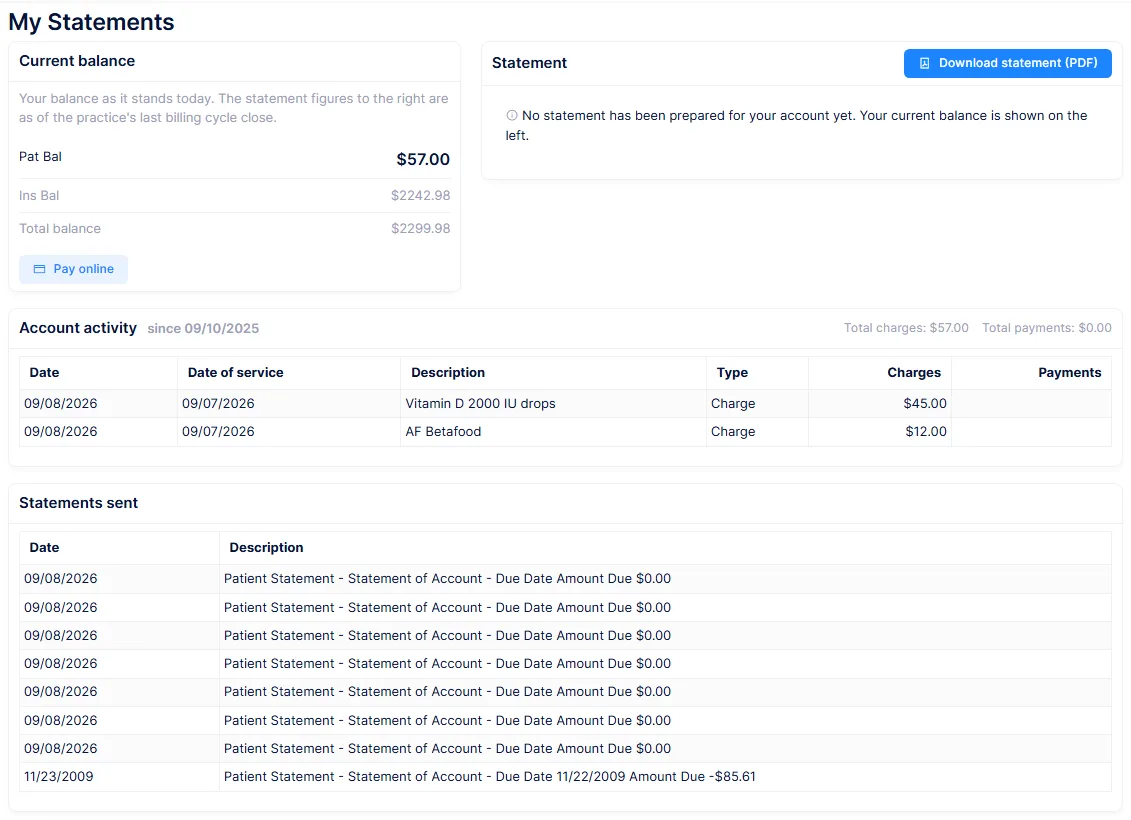
The left card shows patient, insurance and total balance, with a button through to Pay Online when there is something to pay. The right card shows the last statement cycle with the amount due, due date, and any past due amount, and a Download Statement button. Below, Account Activity lists charges and payments, and Statement History lists the statements the practice has sent.
The download is always today's statement
The PDF is built fresh each time from live data. It is not a copy of the statement you posted. Statement History lists past statements but there is no way to download one of them, so a patient asking for "the statement you sent me in March" cannot get it here.
Two more quirks to expect:
- The amount due on screen and in the PDF can differ. The screen falls back to the live balance when the practice's minimum-payment rule produces nothing; the PDF does not. Before your first statement cycle closes, the PDF covers the patient's entire history.
- Activity is limited to the last twelve months and 500 lines, and the cut is silent. Statement History shows at most 24.
If the patient is part of a household and the practice addresses statements to the head of household, the PDF is addressed to that person, so a patient can download a statement in a family member's name. Nothing is recorded when a patient downloads a statement, so it does not appear in their own Statement History and you have no record they took a copy.
My Insurance
The policies on file, which the patient can add to and edit.
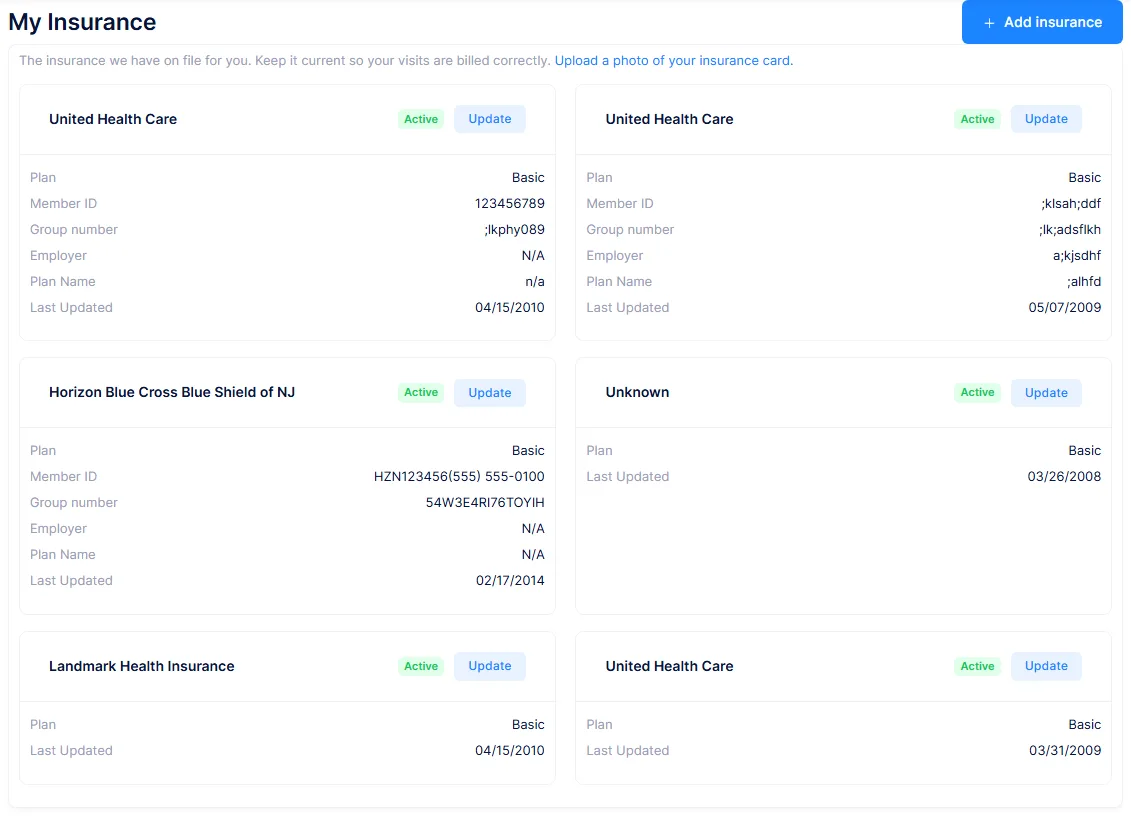
Each policy is a card showing the carrier, an Active or Inactive badge, and the details. Update opens them for editing and Add insurance creates another. The fields are the carrier, the plan, member ID, group number, the subscriber's name, employer, plan name, and the effective and term dates.
Patients edit the real policy, with no review
There is no pending-change queue, no approval step and no notification. What the patient types is what the biller sees, immediately.
That includes repointing an existing policy at a different carrier, including one the biller set up, after which claims go out against the new one. If you switch this screen on, add a habit of checking policies before a billing run.
The design does limit the damage. A patient can only touch the identity of the policy: carrier, plan, member and group numbers, subscriber name, employer, plan name and dates. Everything that shapes billing is untouchable from the portal, including co-pay, deductible, assignment, splits, form type and all the Medicare settings.
Other things to expect:
- There is no delete. A patient can add policies but never remove one. The only way to retire a policy from the portal is to set a term date in the past, so expect clutter.
- A policy the patient adds has no primary or secondary ordering, and can sort above the policies your biller ordered deliberately.
- The carrier dropdown lists every carrier in the catalog, unfiltered. On a practice with a long carrier list this invites picking the wrong variant of the right insurer.
- The Active badge is calculated from the term date, not stored.
- On the edit form, Plan is the coverage record from your catalog and Plan Name is free text. They sit next to each other and are easy to confuse.
Patients are pointed at the Documents screen to upload a photo of their card, which is usually more use to a biller than the typed details.