
Appearance
Reports
Reports are ChiroPad's read-only view of everything the practice has recorded — who came in, what was charged, what was collected, which claims are still open, and what is on the shelf. They live in their own menu: open the context switcher (the icon at the top of the main menu) and choose Reports.
The menu groups reports the way the questions come up:
| Group | Answers |
|---|---|
| Appointment | Who missed, who is booked, who has no next appointment |
| Financial | What was charged, collected and adjusted, and what is owed |
| General | Documentation gaps, diagnosis usage, referral income, attorney cases |
| Insurance | Carriers, deductibles, claims under review and outstanding |
| Inventory | Products on hand and what needs reordering |
| Catalogs | A printable master list of each catalog |
| Patient | New patients, the SmartSelect master list, the phone log |
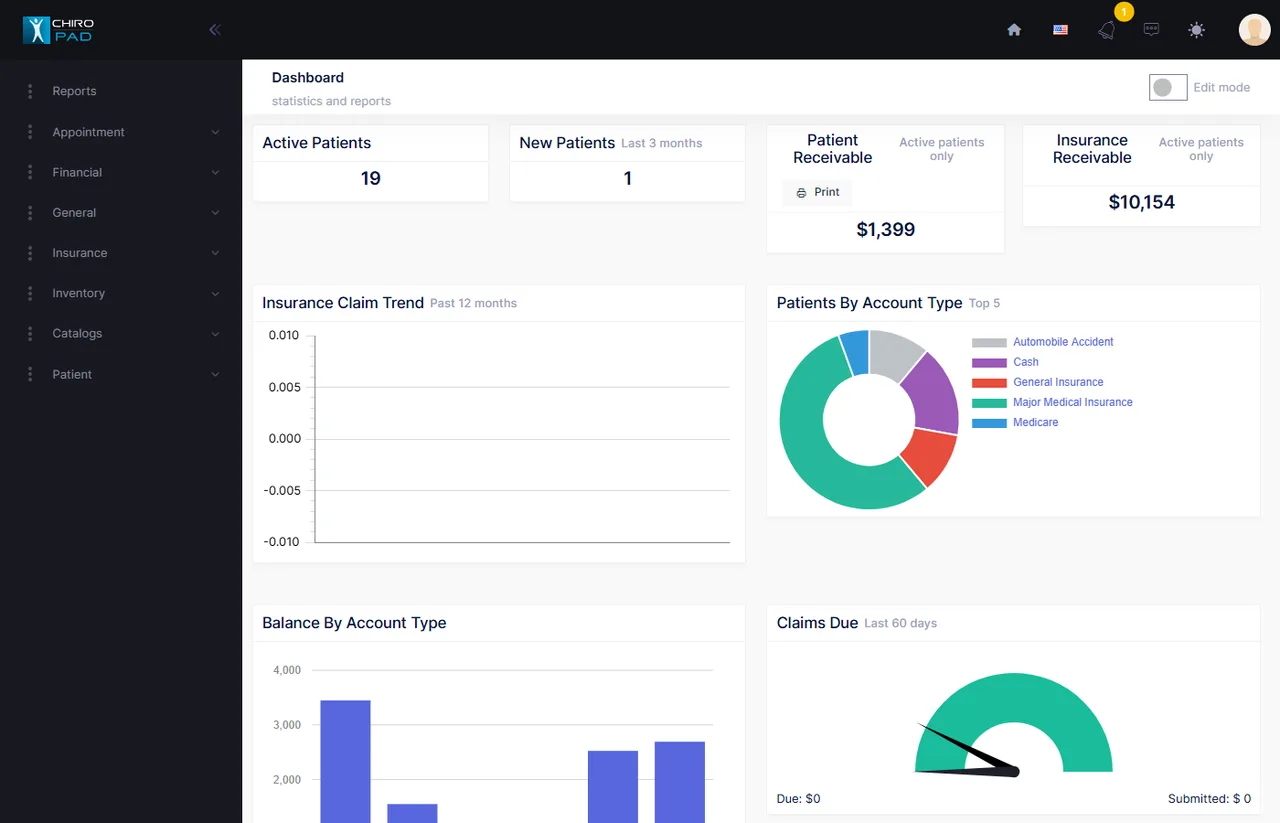
Opening Reports itself lands on the practice dashboard: patient and insurance receivable for active patients, balance by account type, claims due in the last 60 days, the insurance claim trend over 12 months, the top five account types, active patients, and new patients over the last three months. It is the same dashboard as the home page's, so anything pinned there shows here too.
Financial and insurance reports need the billing edition
Reports that read charges and claims — the whole Financial group, the Insurance group, Practice Statistics, Sales Tax and Patient by Insurance — are only available when your subscription includes billing. A clinical-only subscription still has every Appointment, General, Inventory, Catalog and Patient report.
How every report works
Each report is one screen with the same three parts, so once you have run one you can run them all.
1. Filters, at the top right
| Filter | What it does |
|---|---|
| Date range | A picker with preset ranges (today, this week, this month, last month and so on) and a custom start and end. Most reports open showing the last 30 days; a few open on the last three months. |
| Provider | Defaults to All. Choose one provider to restrict the report to their patients or their transactions. |
| Report-specific | A handful of reports add a control of their own — a category on the Phone Log, an attorney picker on Attorney Wise Patient, a Show Inactive box on the master lists. Each is described with its report. |
Change a filter and the report reloads. There is no separate "run" step, except on the MIA Patient report, which has a Go button.
2. The table
Every report is a sortable, searchable table:
- Click a column heading to sort by it; click again to reverse.
- Type in the Search box to filter the rows to those containing what you typed, in any column.
- Long reports are paged; the page size and page controls are at the bottom.
Some reports drill down. On Financial Statistics, Service by CPT, Account Receivable and Insurance Claim Review the first column is a link — click a category, procedure, patient or carrier to open the detail behind that row.
3. Getting it out
The download control above the table exports what the table currently shows — filtered and sorted as you see it — as CSV, Excel or PDF.
The Print button at the top of the page prints the whole report in a print layout, with the filters you chose in the heading.
Exports contain patient information
A CSV or Excel export of a patient report is protected health information the moment it leaves ChiroPad. Save it where your practice's policy says such files belong, and delete it when it has served its purpose.
Where the numbers come from
Reports read the same records the working screens write, so a report is only as complete as the data entry behind it:
- Appointment reports read the Appointment diary and the resolutions recorded on the Front Desk.
- Financial reports read Transactions and Post Insurance, and classify each line by the accounting code on its Procedure.
- Insurance reports read Policies and the claims produced by the Insurance Manager.
- Inventory reports read the product records in the Procedure catalog.
If a report looks wrong, the fix is almost always on the screen where the data was entered, not in the report.