
Appearance
Post Insurance
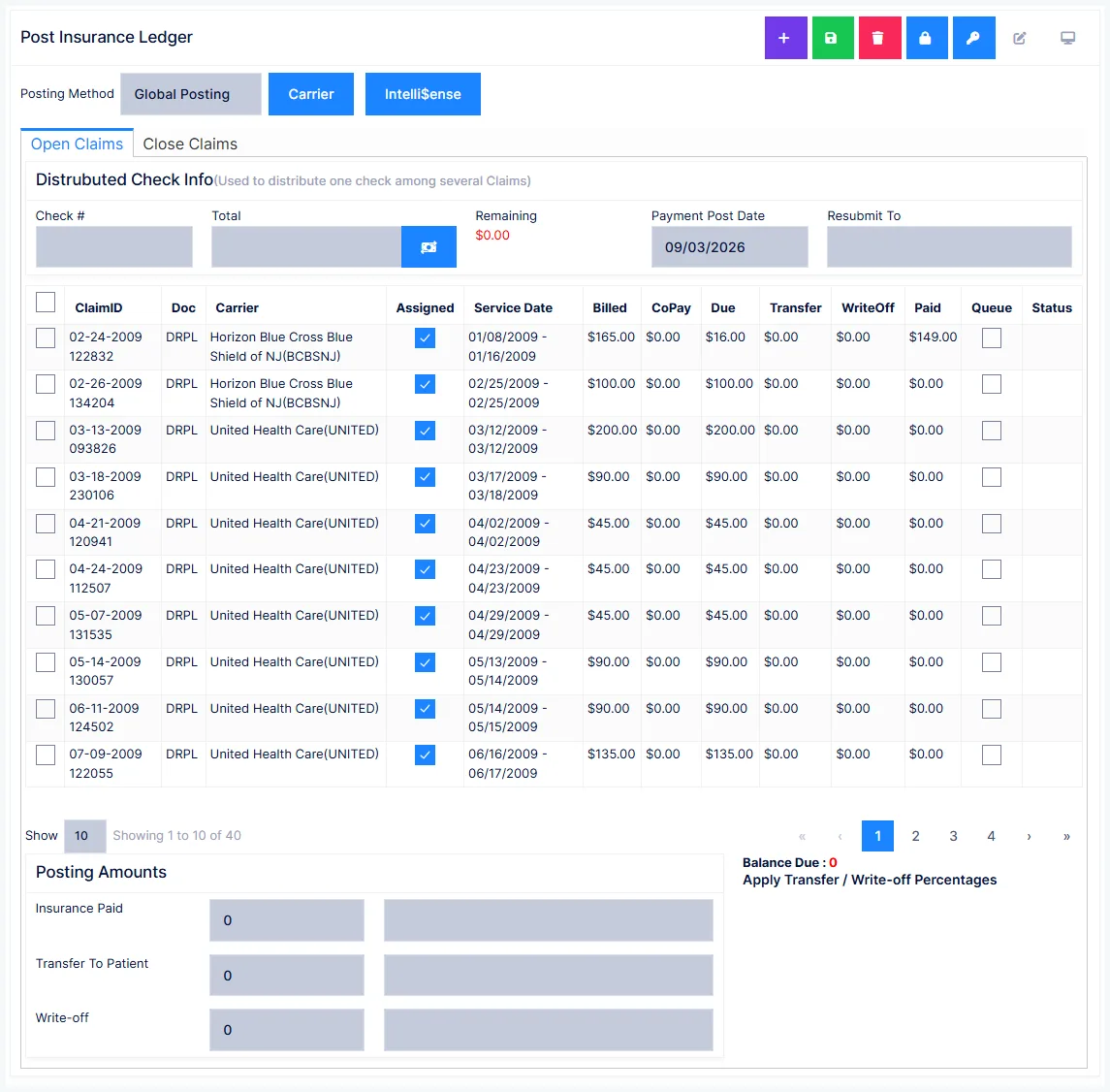
Post Insurance is where insurance money is applied. It is the one place a payment can be tied to a specific claim, which is why insurance payments do not go through Transactions.
Three things happen on this screen, usually together:
- record what the carrier paid
- transfer the unpaid remainder to the patient
- write off whatever will not be collected
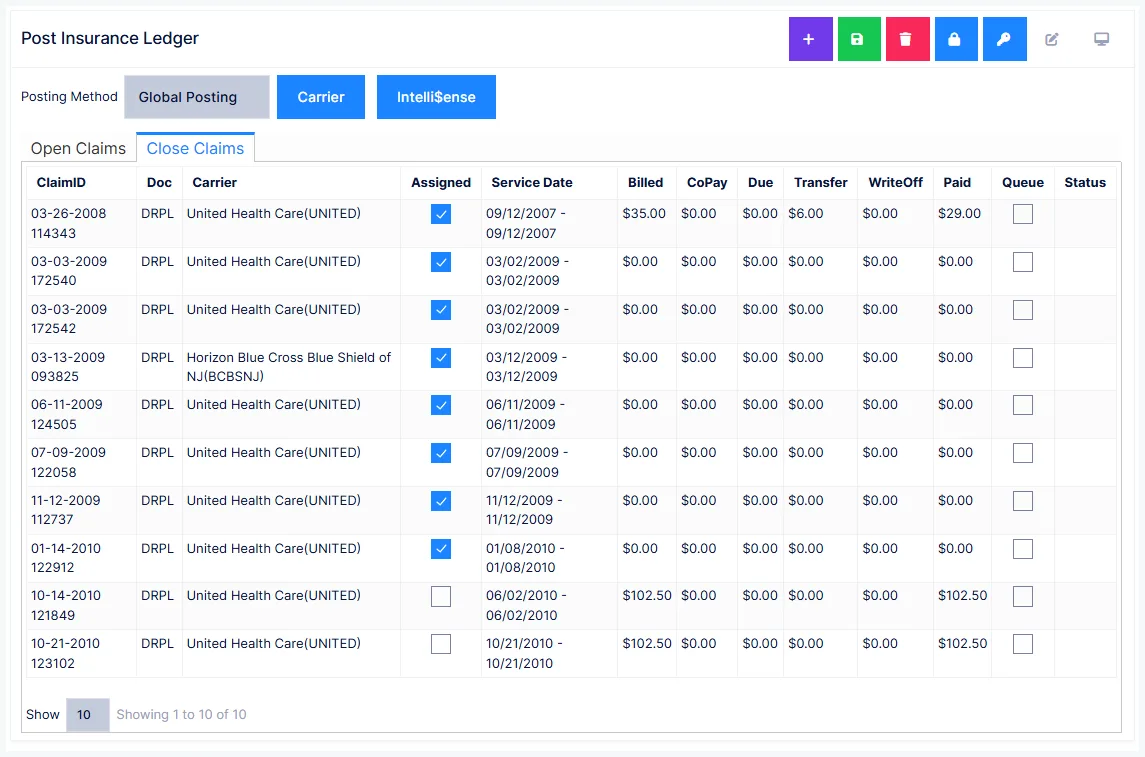
Claims are split into Open and Closed. A claim closes automatically when its balance reaches zero — there is no manual "closed" flag.
Line Item or Global
Two posting methods. Your practice default is set once, and you can switch per session from the selector at the top left.
| Method | How it works |
|---|---|
| Line Item | One entry per service line, matching the EOB line by line |
| Global | One entry for the whole claim, however many lines it covers |
Line Item may not be optional
In some states line item posting is a legal requirement, and some participating-provider contracts require it. Check your state's rules and your carrier contracts before defaulting to Global.
What Global posting costs you
Global is faster, and it costs you the ability to see which services actually got paid. A six-line claim becomes one payment figure — so you cannot tell whether the carrier paid everything, underpaid a line, or quietly declined one. Line item posting is what tells you which services are being given away for free, and whether a carrier is honouring its own fee schedule.
The case where Global genuinely fits: a personal-injury matter that settles years later as a single lump sum, where the carrier never issues an itemised EOB.
The LI Auditor is only available in Line Item mode.
Posting a payment
- Select the claim.
- Enter the Paid amount against the line (or the claim, in Global mode).
- Set the Transfer and Write Off amounts — or click Apply Refused/Write-off % to fill them from the policy's configured split.
- Save.
Nothing is stored until you save
Postings are held on screen until you click Save. Leave the screen without saving and the work is gone. Undo reverses only the line the cursor is on, and only before saving.
One cheque across many claims
Enter the check number and check amount in the distributed-check area at the top. As you post, a Funds Remaining figure counts down, and the cheque number and total are stamped into the remarks of every line you post. Save once, at the end, when the whole cheque is distributed.
Transfer and write-off
The split comes from Transfer % and Write-off % on the patient's policy, and the two must total 100%.
Writing off the patient's share can be unlawful
In many states the patient must pay 100% of what insurance did not, and writing it off can be treated as fraud or a two-tier billing scheme. Where that applies, set Transfer % = 100 for every patient.
Federally, Medicare treats a write-off as a gift, capped at $50 per patient per year.
Contractual reductions do not belong here
This split models an agreement with the patient. A reduction you agreed with a carrier belongs in that carrier's Intelli$ense fee schedule — where ChiroPad writes off the difference between your fee and the allowable amount automatically, at claim creation. Two different mechanisms; using the wrong one distorts your statistics.
Sending the claim on to the next carrier
Where the patient has more than one carrier, the policy's After payment resubmit to setting drives the cascade. When you post a payment, ChiroPad offers to submit the remaining balance to the next carrier, and creates a new claim for that amount. The chain can run as deep as the patient has carriers.
You can also resubmit without posting money, using Resubmit to Next Carrier.
The secondary carrier needs the primary's EOB
Because the primary carrier's EOB has to accompany the secondary submission, check that the secondary policy's Form Type is set to CMS-1500 — or to an electronic format your clearing house can actually carry a secondary claim on.
Correcting a claim
Claims capture a snapshot of the policy at the moment they were created. Fixing the policy afterwards does not change claims that already exist — you have to relock them.
The order matters:
- Correct the policy
- Come back to Post Insurance
- Relock the claim
- Resubmit
Relock All rewrites every open claim
There are two relock actions: one for the selected claim, and one for all open claims on the patient. Use the second only when every open claim genuinely needs the same correction.
When the numbers do not add up
Three separate repair tools, for three different problems:
| Tool | Use when |
|---|---|
| LI Auditor | Payments or credits exist but aren't linked to a date of service. Offers to assign them, or to delete excess credits that have driven a balance negative. |
| Audit Claim Tx's | A claim's totals look wrong. Recalculates line and claim balances and resets them. |
| Financial Transactions | A payment landed on the wrong line. Lets you detach it and reapply it correctly. |
Colour tells you the state
- A service line in black has been processed and closed
- A service line in blue has not been posted, or was not assigned correctly
- A transaction row in red is not associated with any service line
Deleting a claim
Claim Removal permanently deletes the claim along with every payment, transfer and write-off applied to it, and its whole history. The underlying transactions revert to not billed so a new claim can be created — but the money does not come with them and must be re-entered.
Only for claims that were never submitted
Claim Removal exists for a claim produced in error and never sent. Do not use it to tidy up a claim that has been submitted — you are destroying the billing history along with it.
Proving you filed on time
Submission History logs every submission of a claim: the dates of service covered, the date submitted, the carrier, the form type, and which staff member sent it.
This is legal proof of timely filing
When a carrier denies a claim as filed late, this printout is the evidence that it was not.
Claim Detail Snapshot shows every CMS-1500 box exactly as it was submitted, and the Claim History Log is where staff record collection calls — who they spoke to, when, and what they were told. Together they are the paper trail for a disputed claim.
Carrier edits from this screen are global
The Carrier and Intelli$ense buttons open the carrier's own record. Anything you change there applies to every patient covered by that carrier, not just this one.