Appearance
Catalog
Catalogs are ChiroPad's shared reference data — the providers, carriers, procedures, diagnoses and contacts that patients, appointments and claims all point at. Enter something once in a catalog and every patient can use it.
They also define defaults. An account type carries credit limits and statement settings; a carrier carries a fee schedule and claim rules. Those defaults flow onto the patient when you attach them, and can be overridden per patient from there.
| Catalog | Holds |
|---|---|
| Account Type | Categories of patient account, and the financial defaults each carries |
| Provider | Everyone who delivers billable services or needs a schedule |
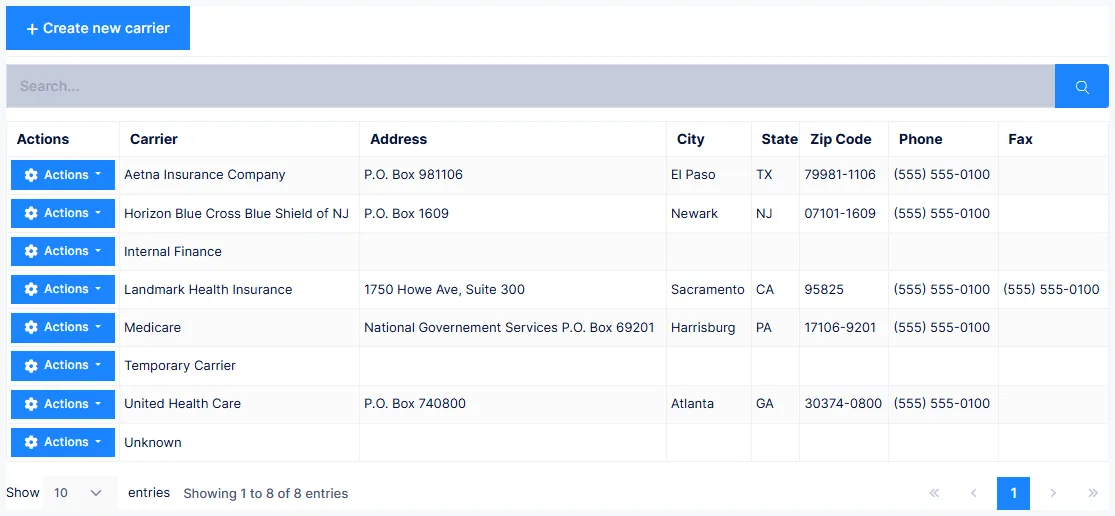
| Carrier | Insurance carriers, their fee schedules and claim rules |
| Procedure | Services, products, and accounting codes |
| Diagnosis | Diagnoses and diagnosis patterns |
| Contacts | Attorneys, Employers, Referring Physicians, Diagnostic Imaging Centers |
| Smaller catalogs | Category, Treatment Room, Languages, Worker Comp Code |
Rules that apply to every catalog
These hold everywhere, and knowing them saves a lot of grief.
Records are never deleted
There is no delete
Catalog records cannot be deleted. To retire one, set its Status to Inactive.
That is deliberate: every historical reference to the record stays intact and reportable, while nobody can attach it to anything new. An inactive carrier can't be selected for a patient; an inactive provider can't be assigned; an inactive diagnosis can't be used.
The exceptions are the few list-style catalogs — Treatment Room, and Diagnosis Patterns — which are simple lists rather than referenced records, and can be deleted.
The ID can never be changed
Every catalog record has a short ID. Once saved, it is permanent.
| Catalog | ID limit |
|---|---|
| Provider | 5 characters |
| Account Type | 5 characters (use at least 2, ideally 3) |
| User | 3–5 characters |
| Carrier, Attorney, Employer, Diagnosis, Referring Physician, Imaging Center | 10 characters |
The ID is internal — it identifies the record to ChiroPad and generally doesn't print on anything. But because it is permanent and referenced everywhere, it is worth a moment's thought before saving.
Referring Physician IDs are prefixed
Every Referring Physician ID automatically begins with RP. You supply the rest.
Status
Active or Inactive. Active is the default and should stay that way while the record is in use. Inactive takes it out of circulation without losing history.
Seeded *TEMP records
You may find records with the ID *TEMP in a catalog. These are placeholders the system uses to establish its initial relationships.
Don't edit *TEMP records
Create your own records instead, and once your real data is in, set the *TEMP rows to Inactive.
What order to set catalogs up in
Some catalogs depend on others, so sequence matters:
- Provider — needed before appointment templates, patient assignment, note signing and billing
- Users — link provider users to their Provider record, so this comes after Provider
- Attorney, Employer, Carrier — referenced by Account Type
- Account Type — attaches to patients and carries their financial defaults
- Procedure — needed before anything can be charged
- Diagnosis — then diagnosis patterns built on top
- Referring Physician and Diagnostic Imaging Center — before claims need boxes 17/17a/17b, and before imaging or exam reports
- Treatment Room — before enabling the room prompt at sign-in
This is a business exercise, not data entry
Setting up catalogs means deciding your fee structure, your account categories and your collection policy. It is worth doing with the practice owner or office manager in the room, and worth doing in a concentrated block rather than piecemeal — the decisions want to be consistent with each other.
Do it thoroughly, too. Anything missing here is something your front desk has to type while a patient stands waiting.
Finding records
Catalogs share a search model: choose what to search in — Any Field is broadest, or narrow to Description, ID or Code — type a few characters, and matching records are listed. There is also an A–Z jump and a browse-everything option.