
Appearance
Ortho/Neuro
Orthopedic and neurological signs and tests. Tests are grouped into folders so the ones you use routinely are a click away rather than buried in a list of hundreds.
Every test uses the same entry form, so once you have recorded one you know how to record all of them.
Recording a test
- Pick the folder, then the test
- Leave Unable to Perform Due To blank if you performed it
- Mark the result positive or negative in the appropriate column
- Add the finding detail
- Save to grid
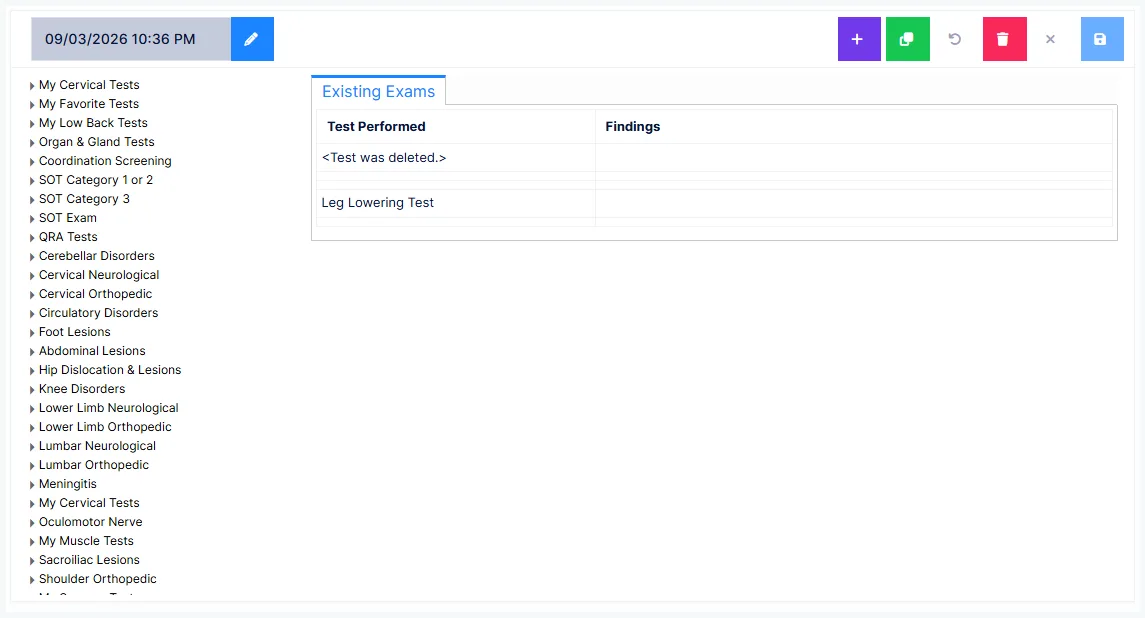
Each test is committed individually — the grid builds up the tests you performed this visit. Cancel abandons the one you are working on; Delete from grid removes one you already saved.
Unable to Perform
Any entry here shuts off the rest of the test
Unable to Perform Due To and a finding are mutually exclusive. Put anything in this dropdown and no other entry can be made for that test.
That is the intended behaviour — it records why a test could not be done rather than leaving a blank that reads as "not attempted". But it does mean a stray selection silently prevents you recording a result.
Left, right, and neither
Results are recorded in three columns, labelled Center, Left and Right. Use Center for tests that are neither left nor right.
Each column carries its own complete set of finding fields, so the two sides are recorded independently and can differ.
Bilateral is worked out, not entered
There is no "bilateral" button. When a test is positive on both sides, ChiroPad can combine them into a single "positive bilaterally" statement in the note. Record each side as you found it.
Positive/negative, present/absent
How a result is worded in the note depends on what kind of test it is:
- An orthopedic test reads as positive or negative
- A neurological sign reads as present or absent
That is set on the test in the catalog, not chosen here.
The finding detail
| Field | Records |
|---|---|
| ROM — Active | The range at which the test became positive, patient moving unaided |
| ROM — Passive | The same, with you moving the patient |
| Other Findings | Anything else observed during the test |
| Pain Level | Pain reaction to this test, 0–10 |
| Pain Quality | Multi-select — the character of the pain |
| Paresthesia | Multi-select — abnormal sensations |
| Additional Notes | Free text |
This ROM is not the patient's range of motion
The Active and Passive values here record the point at which this test became positive — not how far the patient can move. The patient's actual range belongs on Range of Motion.
"Not noted" versus zero
Blank is not the same as zero
The ROM fields and Pain Level start empty, meaning not noted — nothing goes into the note. Every value from 0 upwards does appear. (The fields also accept −1, which the legacy system used to mean the same thing.)
So an empty field and a 0 are different statements: empty says you didn't assess it, 0 says you assessed it and found none. For a test that doesn't involve movement, leave the ROM fields empty rather than entering 0.
Pain level runs to 10; ROM accepts up to 250 degrees.
Dropdowns and multi-selects work the same way by being left empty.
Test descriptions
Each test carries a description, shown at the bottom for reference. It can optionally be included in the note as well.
Documenting properly
Incomplete findings are the exposure, not wrong ones
State and federal statutes expect as much of the finding detail as the examination allows to be completed for every test performed. Where a file is reviewed and the documentation is found incomplete, the consequences run to demands for refunds of fees already paid, fines, and allegations of fraud.
ChiroPad will save a test with nothing but a positive/negative mark. That is rarely enough.
Getting the tests into the note
Recording a test does not by itself put it in the SOAP note. On the Documents screen, the Ortho/Neuro section needs to be forced in — or at least not suppressed. See SOAP for how force and suppress work.