
Appearance
SOAP in the mobile app
The SOAP menu holds the five screens that make up the visit, plus Generate, which turns them into the written note. They record the same information as the web application; this page shows how each one works by touch.
Subjective
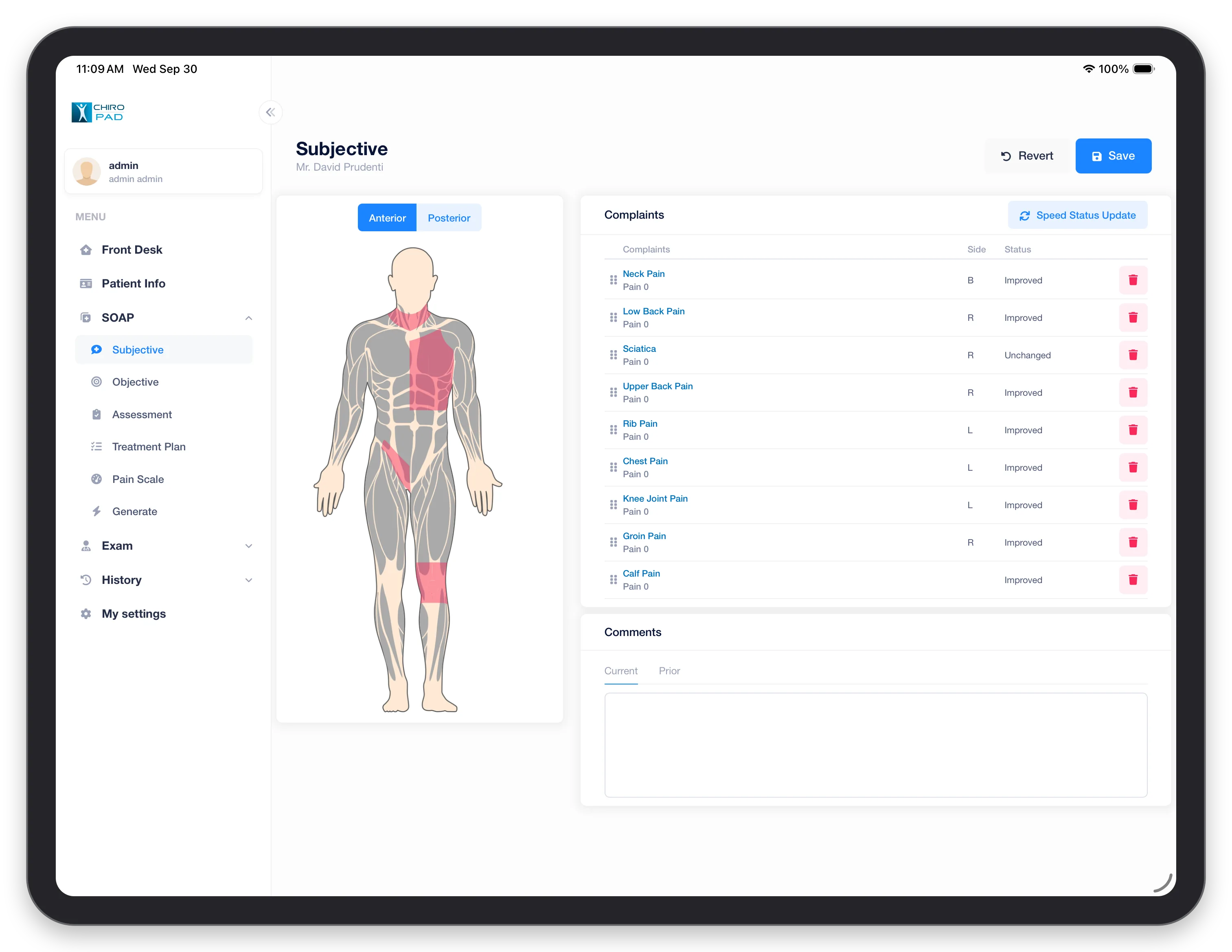
What the patient reports, recorded against a body diagram.
- Switch between Anterior and Posterior, then tap a region of the body to add a complaint there. Regions with a complaint are shaded.
- The Complaints list shows each complaint with its side, current pain and Status. Drag the handle on the left of a row to reorder the list; the red button removes a complaint. Tap a complaint's name to open its details.
- Speed Status Update sets every complaint's status at once — each tap cycles them all through Improved, Worsened and Unchanged. Set them all first, then change the exceptions.
- Comments has a Current tab for this visit and a Prior tab showing the last one.
Revert throws away unsaved changes. See Subjective for every field on a complaint.
Objective
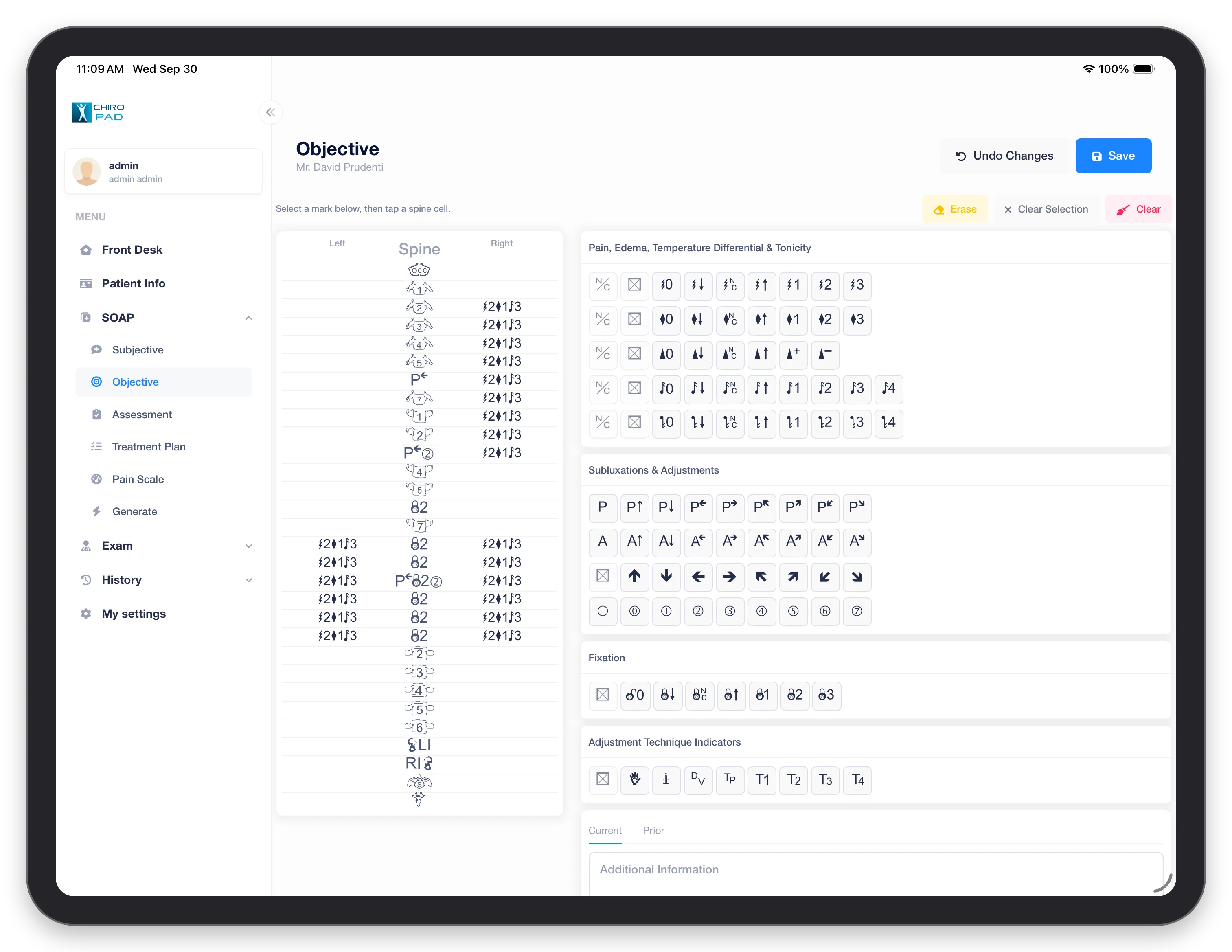
The spinal findings, charted on the spine grid.
- Tap a mark in one of the palettes on the right
- Tap the cell on the spine — the Left, Spine or Right column of a segment — to place it
The palettes are Pain, Edema, Temperature Differential & Tonicity, Subluxations & Adjustments, Fixation and Adjustment Technique Indicators. Above the grid, Erase removes a finding from a cell, Clear Selection clears the marks you have picked without touching the spine (the web application's Power Eraser), and Clear empties the whole grid (the Sweeper). Additional Information below has Current and Prior tabs.
See Objective for what each mark means.
Assessment
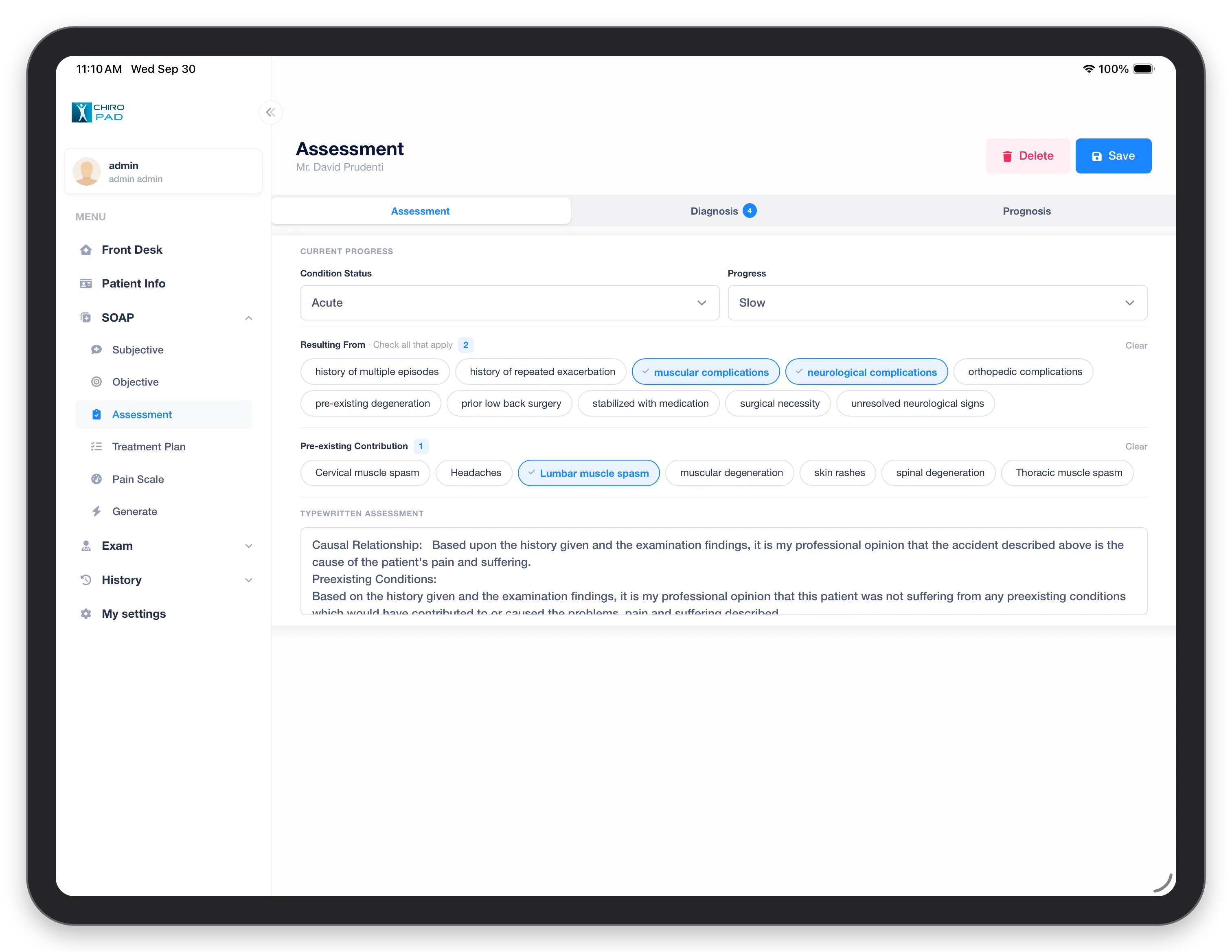
Three tabs: Assessment, Diagnosis (with a count of the diagnoses on file) and Prognosis.
On the Assessment tab, set Condition Status and Progress, then tap the choices that apply under Resulting From and Pre-existing Contribution — selected choices turn blue and the count beside the heading goes up. Clear at the right of each group deselects it. Typewritten Assessment holds the narrative text.
See Assessment.
Treatment Plan
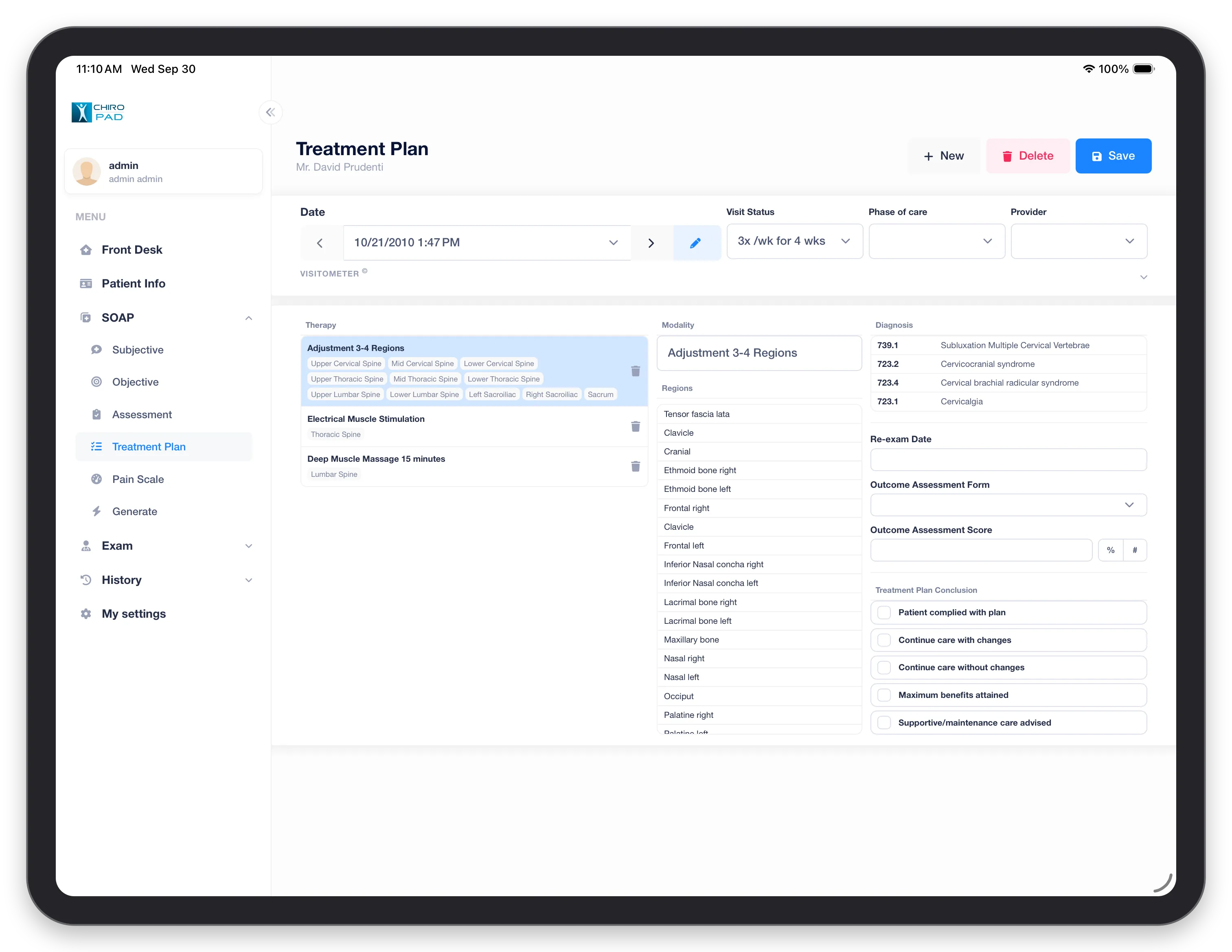
The plan of care, dated like an exam. Step between plans with the date bar, or tap New to start one.
- Across the top: Visit Status (the frequency, such as 3x a week for 4 weeks), Phase of care and Provider. Visitometer sets when the plan expires — by date, by number of visits, or both.
- Therapy lists each therapy with the regions it covers. Tap one to change its Modality and pick its Regions from the list beside it.
- On the right: the plan's Diagnosis codes, Re-exam Date, Outcome Assessment Form and Score, and the Treatment Plan Conclusion checkboxes.
See Treatment Plan.
Pain Scale
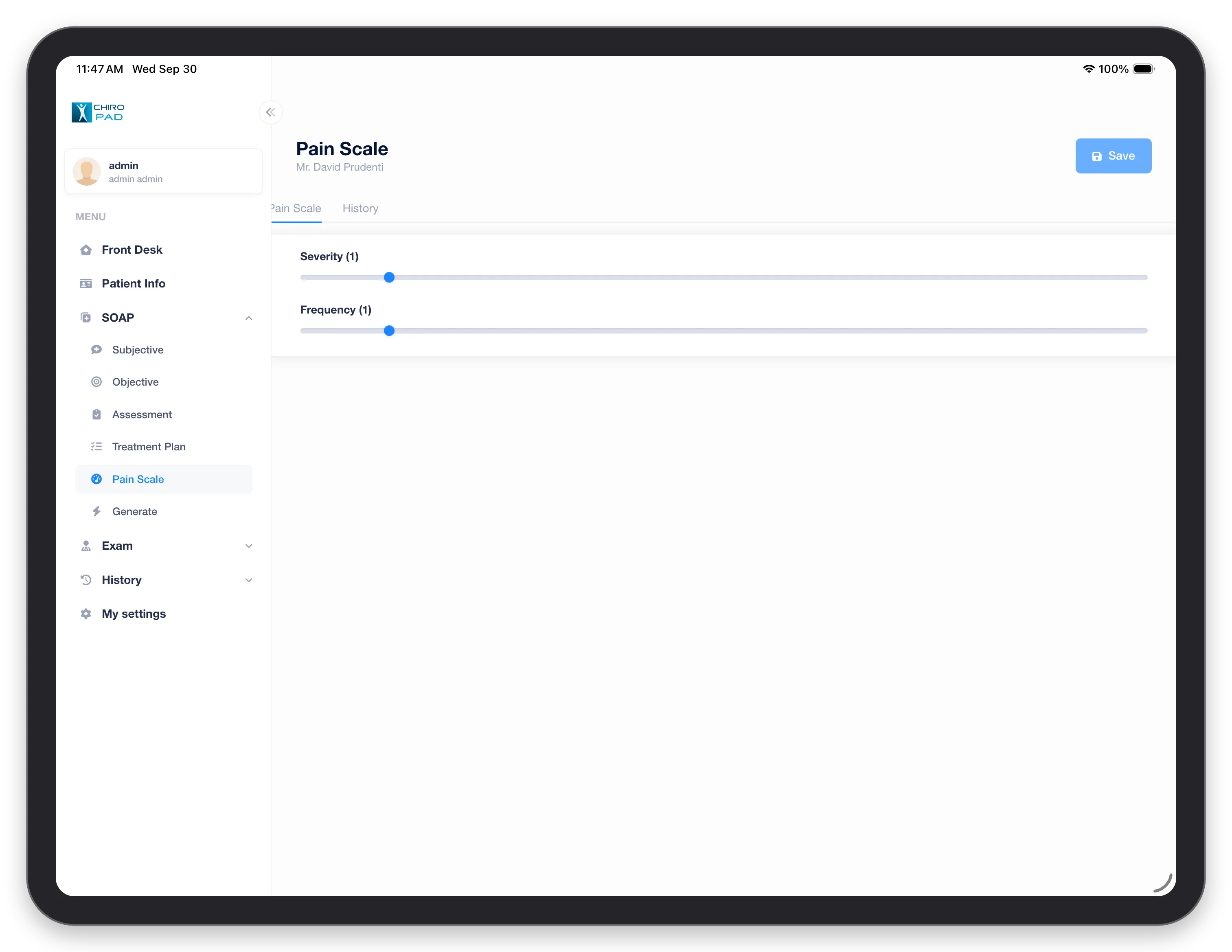
Drag the Severity and Frequency sliders; the number beside each label shows the value. The History tab shows earlier readings. See Pain Scale.
Generate
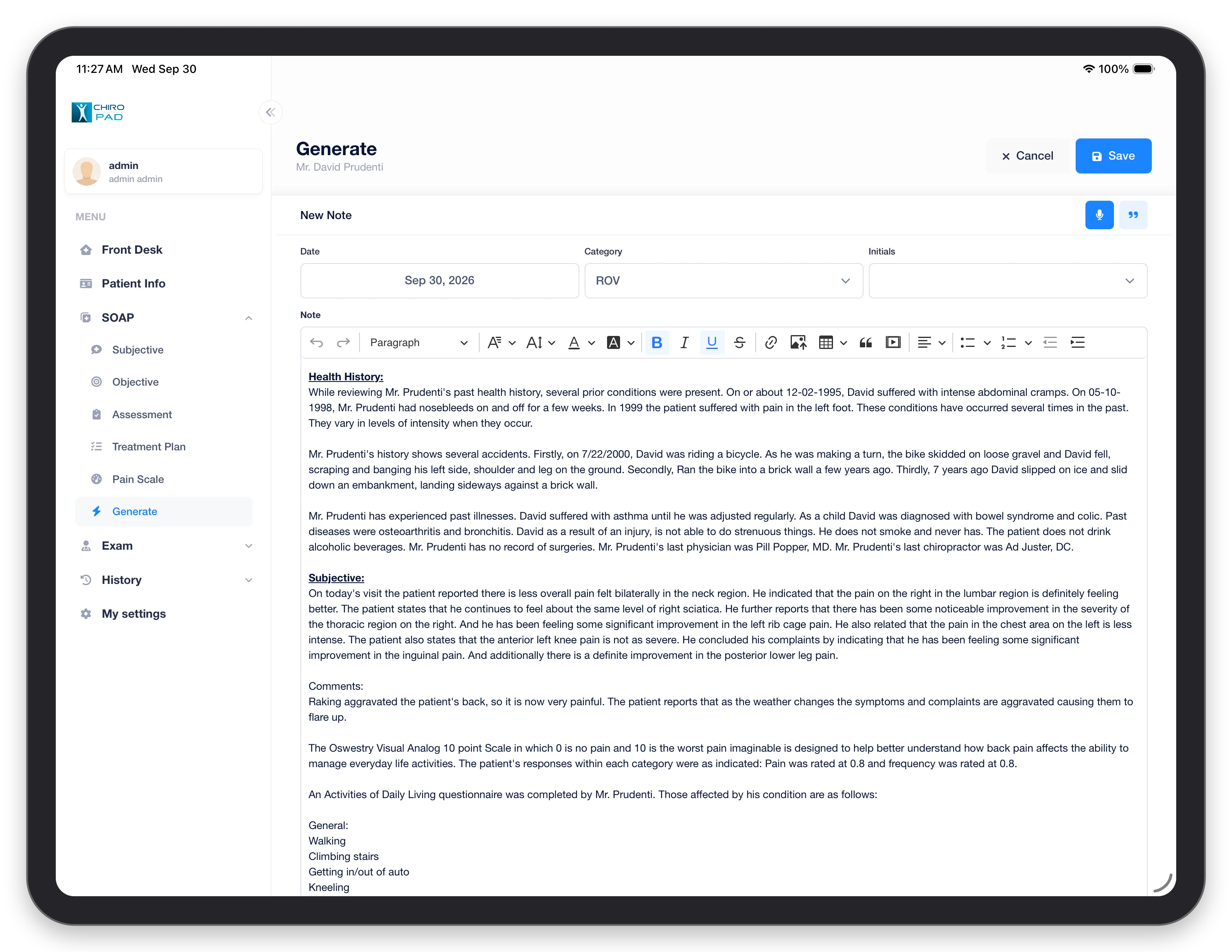
Generate builds the written SOAP note from what has been charted.
- Check the Date, and choose the note's Category and your Initials
- Review the generated text in the editor — it formats like a word processor, with headings, lists, tables and links
- Tap the microphone button at the top right to dictate additions instead of typing them
- Tap Save
Cancel closes the note without saving. Dictation needs your practice's server to provide speech recognition; if it does not, the microphone is unavailable and notes are typed. See Generate (SOAP note).