
Appearance
Patient Portal
The Patient Portal is a separate area of ChiroPad that patients sign into themselves. It shares the same database as the practice's screens, so what a patient changes there lands on the chart the office is working from.
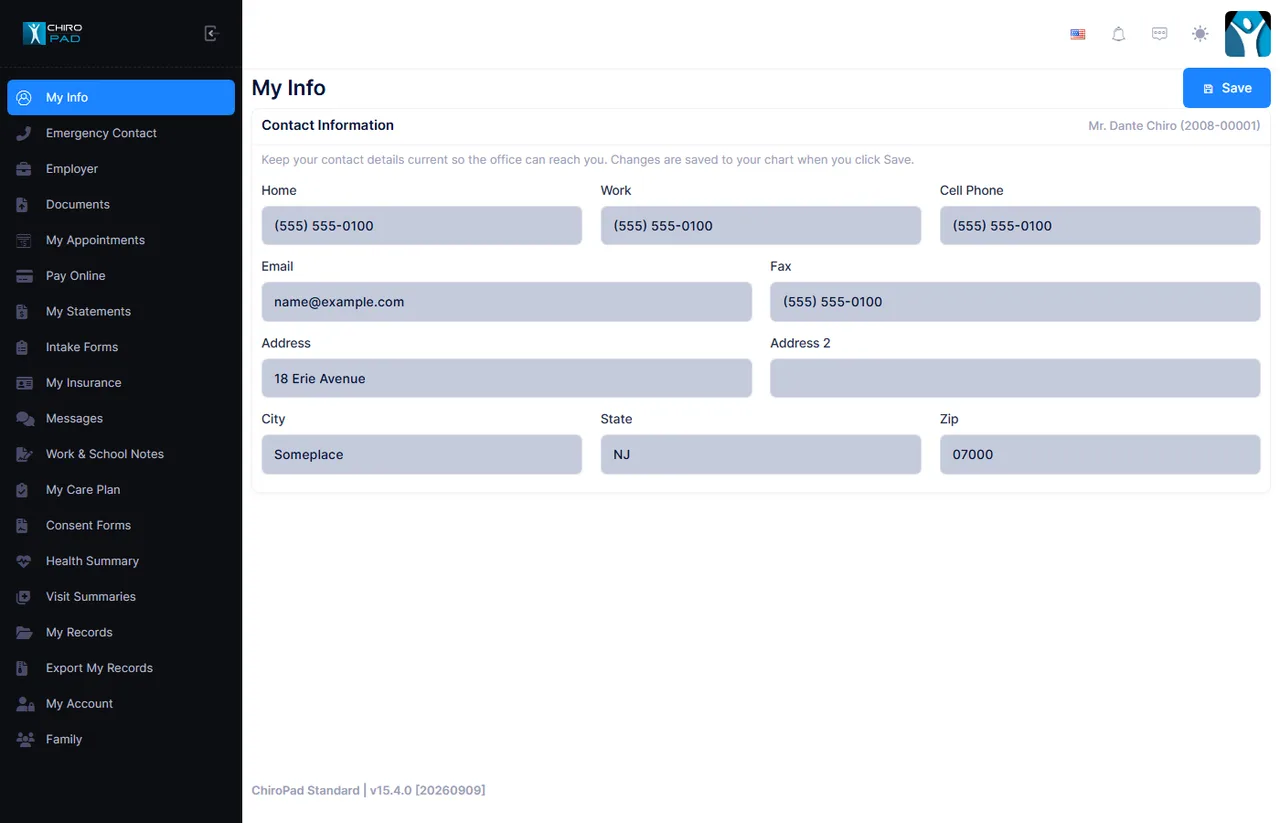
What patients can reach
Nineteen screens, each switched on independently:
| Area | Screens |
|---|---|
| Their details | My Info, Emergency Contact, Employer, Family, My Account |
| Visits and care | My Appointments, My Care Plan, Visit Summaries |
| Messages and notes | Messages, Work & School Notes |
| Money and insurance | Pay Online, My Statements, My Insurance |
| Forms the patient completes | Intake Forms, Consent Forms, Documents |
| Records they can take away | Health Summary, My Records, Export My Records |
Read this before switching it on
Four things that catch practices out
Card payments do not reach the ledger by themselves. The card really is charged, but no transaction is posted. Somebody has to reconcile them daily from Front Desk. See Pay Online.
Patients can change their own insurance with no review. There is no approval queue. A patient can repoint an existing policy at a different carrier and the next claim goes out against it. See My Insurance.
Visit notes appear the moment they are saved. There is no "release to portal" step and no draft state, so a note written in error is visible until it is deleted. See Visit Summaries.
Patients can delete medications and allergies a clinician entered. The row is marked removed with no flag on the chart and nobody is told. See Intake Forms.
Nothing a patient does anywhere in the portal waits for approval. Every screen that saves, saves straight to the chart. The two exceptions are deliberate requests rather than edits: a note request and a correction to a visit note, both of which a member of staff decides.
Giving a patient access
Access is granted from the chart, not from Administration.
- Open the patient, go to Patient Information → Personal.
- In the Patient Portal card, enter the patient's email address and use Enable portal access. They are emailed an invitation.
- The account is created with the Patient role, which carries every portal permission.
The Patient role is a static role, so it exists in every tenant, but it is not a default role. Nobody receives it except through that button.
Someone who is not a patient
A parent or carer who is not themselves a patient cannot be invited directly. Enable portal access on the first child's chart to create their login, then link the other charts to it from the Patient Portal card on each of those charts.
Deciding what patients see
Each of the nineteen screens has its own permission under Patient Portal in Administration → Roles. Clear a permission and both the menu item and the page disappear for everyone holding that role.
Two pairings are worth knowing before you start unpicking the defaults:
- Family has no permission of its own. It uses the My Info permission, so switching off My Info also removes a patient's ability to switch between the charts they are linked to.
- Two download buttons belong to My Records. The Download button on a signed consent, and the one on an approved work or school note, both go through My Records. Grant Consent Forms or Work & School Notes without it and the button appears but fails when clicked.
Turning the feature off does not lock patients out
The Patient Portal feature gate is only checked when staff enable access, resend an invitation, or link an account. The patient-facing screens do not check it. Switch the feature off for a tenant and existing portal accounts can still sign in and keep editing. To actually stop access, remove the permissions from the Patient role or disable the individual logins.
Families and shared charts
A portal account can be linked to more than one chart, which is how a parent manages a child's record. The patient chooses which chart they are working on from Family, and that choice sticks until they change it. It survives signing out and applies on every other device.
Chart access is all or nothing
There is no way to grant a guardian part of a chart. A person linked to a chart can do everything on it that the patient could: see the balance and a year of account activity, download the statement, read the clinical notes and care plan, edit the insurance, and change the login email address. The only control the practice has is granting or revoking the whole chart.
Only the three self-service forms show whose chart is on screen. Everywhere else there is no indication, so a guardian can act on a child's record believing they are on their own.
Where portal activity shows up for staff
| What the patient did | Where you see it |
|---|---|
| Paid by card | Front Desk → Unlinked Card Payments, until somebody posts it |
| Sent a message | Front Desk → Patient Messages |
| Asked for a work note | Front Desk → Note Requests |
| Asked to correct a note | SOAP → Amendment Requests |
| Uploaded a file | Patient Information → Scanned Documents, in a PortalUploads folder |
| Signed a consent | Scanned Documents, in PortalConsents, and on the patient's My Records |
| Changed details, insurance | Nowhere. The chart simply holds the new value. |
Only the first four raise anything. Notifications go to every active user holding the matching permission, so make sure somebody holds Patient Messages and Note Requests or those requests will sit unanswered.
Portal edits are hard to spot after the fact
The policy table is not audited, so once a patient has changed their insurance there is nothing on the row to say the change came from the portal rather than the front desk. Only the modified date moves. The same is true of contact details. If you need to know who changed something, the ABP audit log is the only record.