
Appearance
Mobile app
The ChiroPad mobile app puts the clinical side of ChiroPad on a tablet, so the provider can chart at the treatment table instead of walking back to a workstation. It works against the same ChiroPad server as the web application: anything saved on the tablet is in the patient's record straight away, and anything saved on a workstation shows up on the tablet.
The screenshots in this section were taken on an iPad.
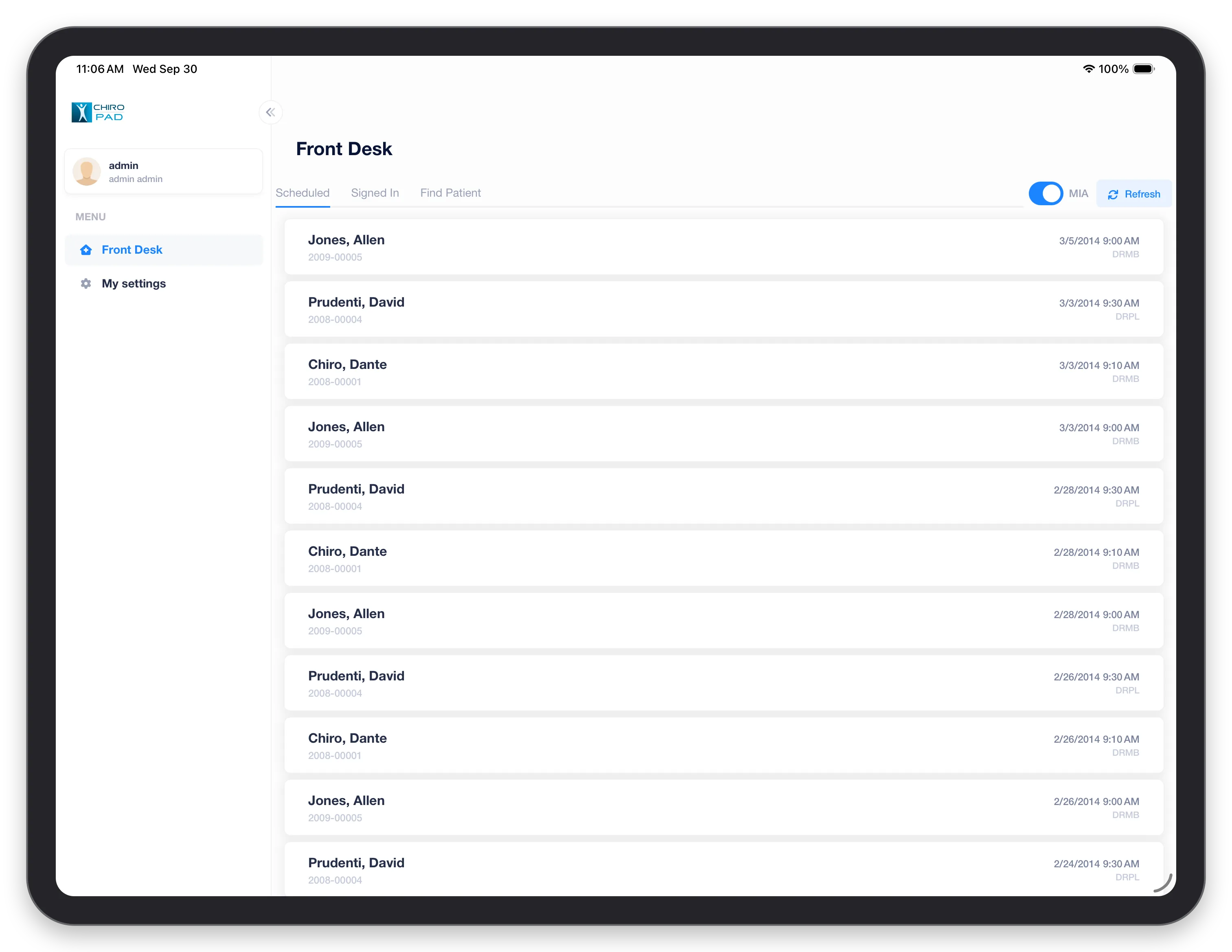
What the app covers
The app covers the screens a provider uses during a visit. The back office — Administration, Customization, Reports, billing and the catalogs — stays in the web application.
| Menu | Screens | Guide |
|---|---|---|
| Front Desk | Scheduled, Signed In, Find Patient | Front Desk and Patient Info |
| Patient Info | Demographics and scanned documents | Front Desk and Patient Info |
| SOAP | Subjective, Objective, Assessment, Treatment Plan, Pain Scale, Generate | SOAP |
| Exam | Ortho/Neuro, Range of Motion, Physical, Diagnostic Imaging, Sensory, Muscle, Extremity | Exam |
| History | Health, Family, Activities of Daily Living, Auto Accident, Work Injury, Work Restriction, Immunization | History |
| My settings | Your own preferences | — |
Getting around
- The menu runs down the left, under your name. Patient Info, SOAP, Exam and History appear once a patient is open; tap a heading to expand its screens. The « button beside the logo collapses the menu to give the screen more room.
- The patient's name sits under every screen's title, so you always know whose chart you are in.
- Save is at the top right of every screen, alongside Undo Changes (or Revert) to throw away edits you have not saved yet. Nothing reaches the record until you tap Save.
- Dated records — exams, treatment plans, health history, work injury and restrictions — have a date bar with ◀ and ▶ to step between earlier entries, and New to start one for today. Most exams also have Clone, which starts today's exam as a copy of the one on screen.
- Past exams are read-only. Only today's exam can be edited; the screen says so, and points you to Clone to start a new one from it. Sensory, Muscle and Extremity also offer Make Addendum.
Signing in
Your practice sets up your login; you cannot create an account from inside the app. What you can see and do is governed by the roles and permissions your practice gives you, just as in the web application. By default the app connects to host.chiropad.com; if your practice runs its own server, it will give you the address to use.
Your device and your data
- Patient records are not stored on the tablet. The app reads and writes them on your practice's server as you work, so it needs a network connection.
- The camera photographs documents into a patient's chart, and the microphone is used to dictate notes. The app asks the first time it needs each one; you can turn either off later in the device's settings.
- Dictation is converted to text by Microsoft Azure AI Speech under a HIPAA Business Associate Agreement, not by the device's built-in speech recognition.
The Privacy Policy covers each permission in detail, and Account & Data Deletion explains how accounts are closed.
Where to find the details
Each screen in the app records the same information as its counterpart in the web application, laid out for touch. The pages in this section show each screen and what is different about using it on a tablet; for what every field means, follow the links to the full web guides.